 Scrollie
How to take a long screenshot on iPhone — three methods that actually work
Last updated: 22 July 2026
"Long screenshot" means different things to different people. Sometimes it's a whole webpage on one image. Sometimes it's a chat thread that scrolls for a mile. Sometimes it's a screen recording you want to turn into a still. iOS has a real built-in tool for one of those cases — and for the other two, you'll want something dedicated. This guide covers all three honestly, so you know when the free built-in path is enough and when it isn't.
The short answer: For a full webpage in Safari, use iOS's built-in Full Page screenshot — it's free and saves a PDF. For two or three overlapping shots in any app, iOS Markup can crop and stack them manually. For scrolling recordings, chat threads, non-Safari apps, or anything you want to edit and annotate afterward, use a dedicated app like Scrollie.
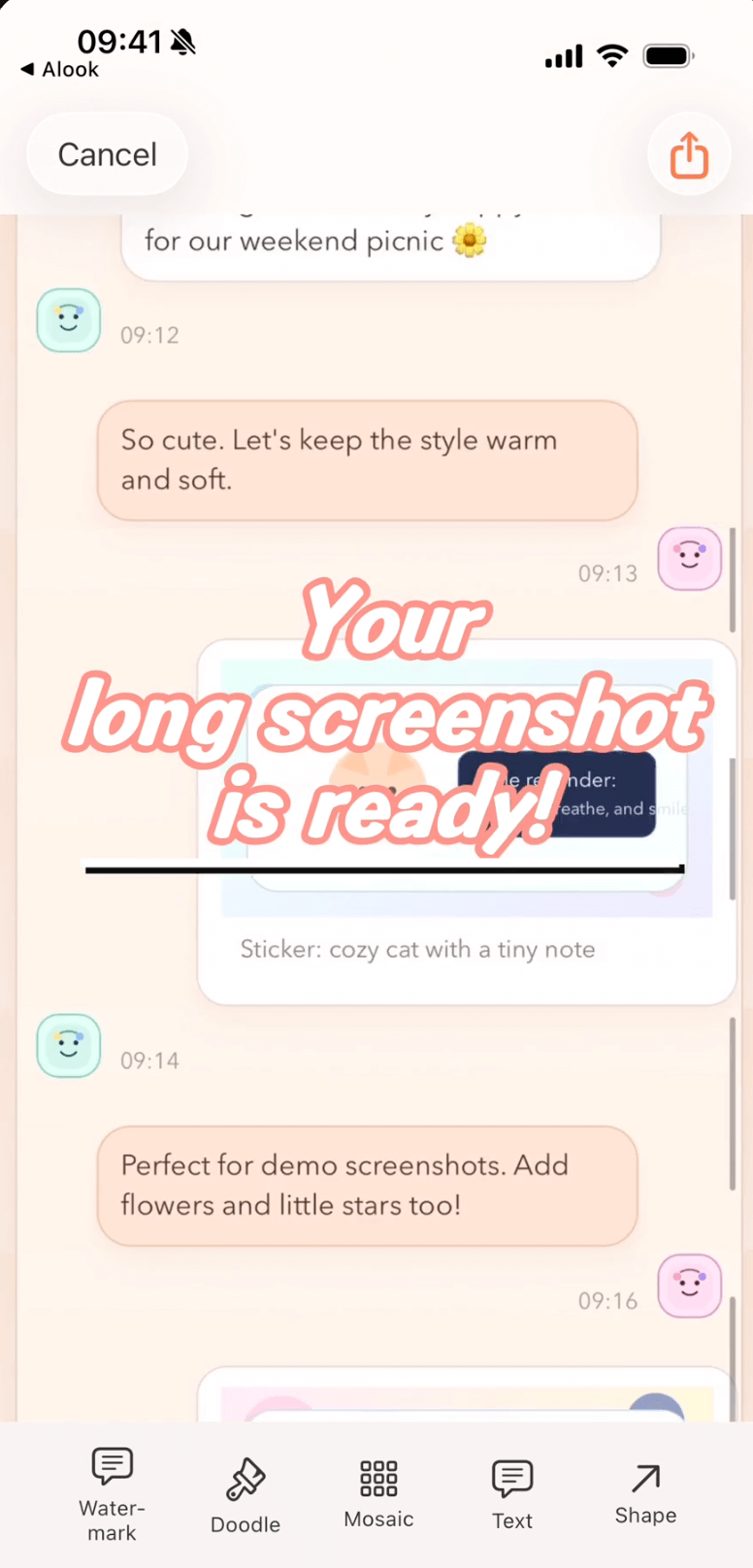
Scrollie's editor after a screen recording has been turned into a long screenshot, with fine-tune seam controls on the right.
Method 1 · iOS Safari Full Page screenshot (built-in, webpages only)
This is Apple's own long-screenshot feature and most iPhone users don't know it exists. It works only inside Safari, only for webpages, and it saves a PDF — not a JPEG or PNG. Within those limits it's excellent and completely free.
- Open the webpage you want to capture in Safari (not Chrome, not an in-app browser — the Full Page option only appears in Safari).
- Take a screenshot the normal way: press the side button + volume-up at the same time.
- A thumbnail appears in the bottom-left corner. Tap it before it disappears.
- At the top of the preview screen, you'll see two tabs: Screen and Full Page. Tap Full Page.
- Use the sidebar on the right to scroll and crop the areas you want to keep, then tap Done.
- Choose Save PDF to Files, pick a location, and confirm. The full page is saved as a single PDF.
Honest limits: the output is a PDF, so if you wanted a JPEG for a chat app or a PNG for a design tool, you'll need to convert it afterward. The mode also doesn't exist in Chrome, Firefox, or third-party browsers, and it does nothing for chat apps, Twitter/X, Instagram, Notes, or anywhere that isn't a webpage. If Safari Full Page is enough for you, you're done — no app needed.
Method 2 · Manual stitching with iOS Markup (a couple of screenshots)
For two or three ordinary screenshots you can piece something together with the Markup tool in Photos. There's no automatic stitching in iOS, so you're doing this by hand.
- Take each screenshot the normal way, making sure each one overlaps the previous one by a few lines of content — that overlap is the visual glue you'll rely on later.
- Open the first screenshot in Photos, tap Edit, then tap the Markup pen icon.
- Use the crop tool to trim status bars, tab bars, or any bits you don't want.
- Open the second screenshot, crop it to line up with the tail of the first, and either paste it beneath the first image in a canvas app or share them together into a document.
- Repeat for a third screenshot if needed, matching each overlap by eye.
Honest limits: iOS does not have a built-in stitching tool. Markup can crop and annotate one image at a time, but it will not detect overlaps, remove scrollbars, or produce a single tall image from N screenshots. It works for two or three shots if you're patient; past that, you'll want a dedicated stitcher.
Method 3 · A dedicated long-screenshot app (scrolling, chats, recordings)
Once you're outside Safari — a WhatsApp thread, an Instagram feed, a Notes document, an internal work app — the built-in tools stop being useful. This is where a dedicated app earns its keep. Scrollie is designed for exactly this: it can either stitch multiple screenshots automatically, or turn a screen recording into one tall image.
Path A · Stitch multiple screenshots
- Take several overlapping screenshots of the content you want (a chat thread, an app screen, a document). A few lines of overlap between each is enough.
- Open Scrollie and pick the screenshots from your library, or share them in from Photos.
- Scrollie detects overlaps automatically, hides scrollbars with Smart Cleanup, and produces one tall image.
- If any seam looks off, tap it and use Fine-tune — drag up and down with the magnifier until the seam is invisible. This works for both vertical and horizontal stitches.
- Add annotations, mosaic sensitive info, or apply a device frame. Export as JPEG, PNG, HEIC, PDF, or sliced pieces.
Path B · Turn a screen recording into a long screenshot
Sometimes taking dozens of screenshots is painful. iOS's built-in Screen Recording — turned on from Control Center — lets you scroll through anything and record it as video. Scrollie can then process the recording into a still.
- Add Screen Recording to Control Center if you haven't already: Settings → Control Center → tap the + next to Screen Recording.
- Open the app you want to capture. Swipe down from the top-right corner to open Control Center and tap the record button. Wait for the 3-second countdown.
- Scroll naturally through the content you want to capture — chat, article, feed, whatever. Don't rush; a steady pace helps the stitcher.
- When you're done, tap the red pill in the status bar and choose Stop. On iOS 18 and later, Scrollie can also auto-stop when you stop scrolling. The recording is saved to Photos.
- Open Scrollie and pick the latest recording (or use the Shortcuts URL scheme to open it directly). Scrollie processes the video into a long image; overscroll-back is handled so the final image ends on the frame you actually stopped on.
- Fine-tune, annotate, and export the same way as Path A.
Quick comparison
| Method | Works for | Output | Editable after? |
|---|---|---|---|
| Safari Full Page (built-in) | Webpages in Safari only | No — not an image | |
| Markup manual stitch | 2–3 shots, any app | Whatever you assemble | Manual only |
| Scrollie | Any app, chats, recordings, webpages | JPEG / PNG / HEIC / PDF / slices | Yes — annotate, mosaic, cleanup, mockup |
When the built-in path is enough: if you only ever need to save Safari webpages as one long PDF, Method 1 is free, built into iOS, and doesn't need any download. Scrollie doesn't replace it — use Safari Full Page and skip the rest of this page.
Reach for Scrollie when the content isn't a Safari webpage, when you need a real image file instead of a PDF, when you want to fine-tune seams, or when you want to edit the result afterwards with annotations, mosaic, cleanup brush, or a device mockup.
Frequently asked questions
Does iPhone have a built-in long screenshot tool?
Partially. iOS Safari has a Full Page screenshot mode that captures an entire webpage as a PDF, but it only works inside Safari and only for webpages, and the output is a PDF you cannot easily re-edit as an image. iOS does not have a system-wide long-screenshot tool that stitches ordinary app screenshots or converts a screen recording into a tall image — for those you need a dedicated app.
How do I take a full-page screenshot in Safari?
Open the page in Safari, press the volume-up + side button to take a screenshot, then tap the thumbnail that pops up in the bottom-left corner. At the top of the preview, switch the tab from Screen to Full Page, crop if you want, then tap Done and choose Save PDF to Files. The result is a PDF, not a JPEG or PNG.
Can iOS Markup combine multiple screenshots into one long image?
Not directly. Markup lets you crop, annotate and use Instant Alpha on one image at a time. You can manually crop overlaps and stack two or three images together, but there is no built-in stitching. For anything more than a couple of screenshots it is faster to use a dedicated app that detects overlaps automatically.
How does Scrollie make a long screenshot?
Two paths. First, you can share multiple overlapping screenshots into Scrollie and it will auto-detect overlaps, run Smart Cleanup to hide scrollbars, and let you Fine-tune any seam with a magnifier. Second, you can turn a screen recording into a long screenshot — Scrollie handles the case where you scrolled a little too far and scrolled back, so the final image ends on the frame you actually stopped on.
Is Scrollie free?
Yes, core features are free. Pro features come with a free trial, then a monthly or annual subscription or a one-time lifetime purchase — prices are shown in the app before purchase.
Related pages
When the built-in tool runs out, pick up Scrollie.
Core features free. Pro comes with a free trial, then a subscription or a one-time lifetime purchase.
Download Free on the App StoreiPhone & iPad · iOS 16 or later · 100% on-device