 Scrollie
Screen recording to long screenshot on iPhone — in one pass
Last updated: 21 July 2026
When content scrolls for many screens — a timeline you're archiving, a long settings page, a chat that keeps going — stitching individual screenshots is fiddly. It's easier to let iOS record the scroll once, then let Scrollie stitch from the video. This page walks the whole workflow: iOS recording, extracting and stitching, cleaning up seams.
The short answer: Use iOS Screen Recording (Control Center → Screen Recording) to capture yourself scrolling through the content. Open Scrollie; the latest recording is one tap. Scrollie extracts frames, recognises the scrolling region, and stitches them into one long screenshot. It auto-stops after your scroll ends, handles overscroll-back, and lets you Fine-tune any seam with a magnifier.
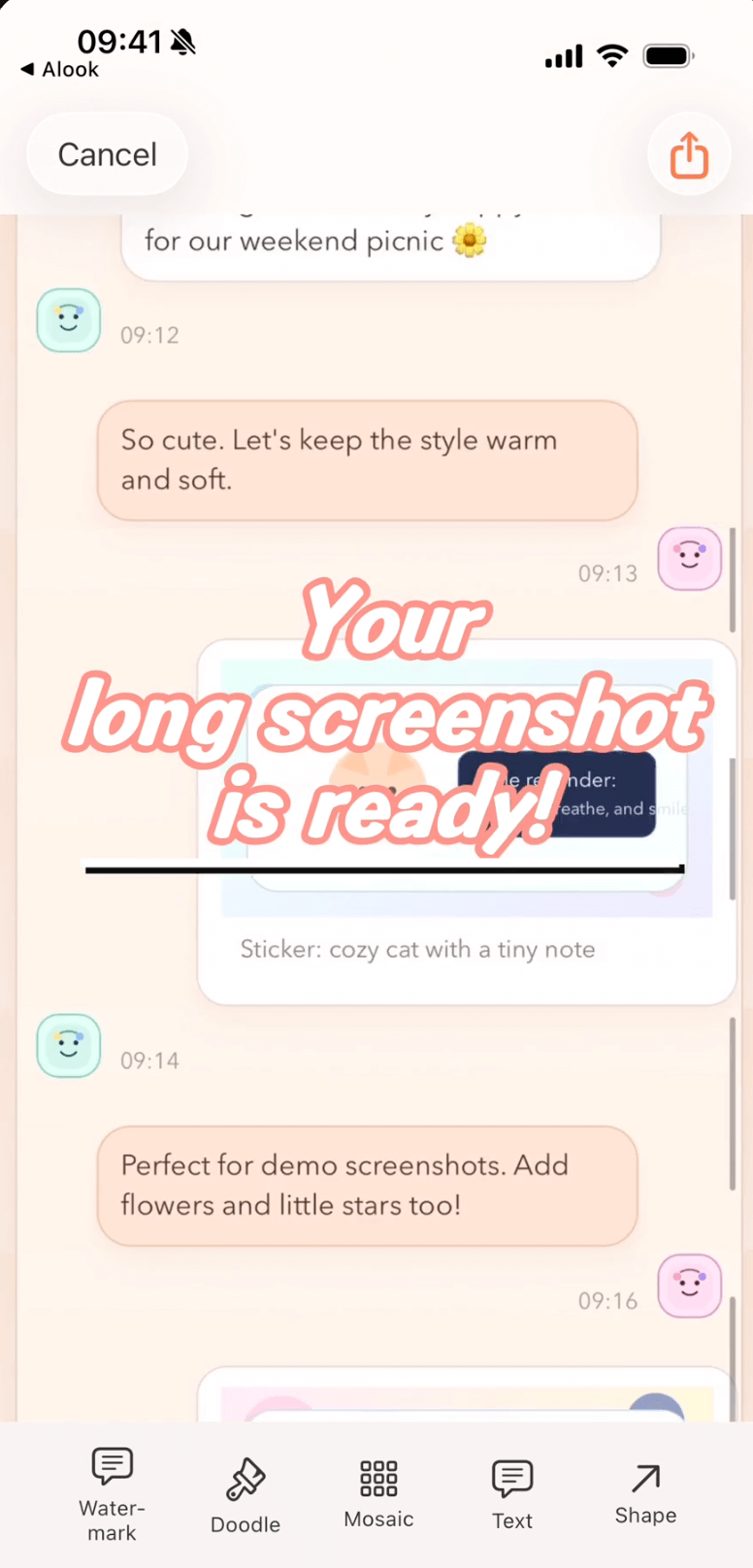
Recording-to-long-screenshot result: frames extracted from the scroll, stitched into one long image, with a magnifier ready to Fine-tune any seam.
Step-by-step: record the scroll, get the long screenshot
- Add Screen Recording to Control Center (once). Settings → Control Center → tap the + next to Screen Recording.
- Start the recording. Swipe down from the top-right to open Control Center, tap the Screen Recording button. After the countdown, open the app you want to capture and scroll.
- Scroll at a steady pace. When done, tap the red status pill and choose Stop.
- Open Scrollie and pick the recording. The latest recording is one tap on the home screen. Scrollie extracts frames, recognises the moving region, and stitches them into a single long image. Open Video Trim first if you need to cut the timeline.
- Fine-tune, edit, export. Drag any seam with the magnifier if alignment is off. Add annotations or mosaic, use Cleanup brush, and export to JPEG, PNG, HEIC, PDF or slices. Edits auto-save as drafts, portrait and landscape separately.
How Scrollie processes the recording
Behind the tap, the recording goes through frame extraction and vision recognition. Scrollie samples frames, identifies the moving region (scroll view, message list, webview) versus what stays still (status bar, sticky header, nav bar), and stitches only the moving region. Still parts keep their position at the top and bottom, so the result looks like a screenshot that got longer, not a video collage. Both the stitch and recording paths share the same editor via the long-screenshot app hub.
Auto-stop after scrolling ends
People almost always stop scrolling before they remember to stop the recording. Scrollie treats the still tail of the recording as "the scroll is over" and doesn't tack it onto the long screenshot. In Settings you can pick how much idle time at the end counts as done.
Overscroll-back handled
The other common friction is overshoot: you scroll past the point you meant to capture and scroll back to fix it. Naive stitching would include both the overshoot and the way back, producing a duplicated tail. Scrollie ends the finished image on the frame where you finally stopped, not the farthest point you reached — no re-record, no manual trim.
Editing the recording-based long screenshot
Once the long image lands in the editor, it's the same editor the stitched-screenshot flow uses:
- Fine-tune seams with a magnifier if a transition is off; vertical and horizontal both supported.
- Trim top and bottom — a sticky header or static tail can be cropped directly.
- Smart Cleanup removes scrollbars and repeated UI edges so seams look continuous.
- Cleanup brush paints over anything you'd rather not share, filling the background.
- Video Trim in the top bar crops the recording's timeline first.
When the recording route needs a manual pass: the stitcher works best on uniform scroll. Pages with sticky headers, pull-to-refresh banners, animated ads or list rows that fade in can produce seams the aligner isn't confident about. Fine-tune is the tool — usually one or two seams, not the whole image. For chats, settings pages and static articles the automatic result is normally ready as-is.
When to prefer recording over stitching
- More than 6–8 screens of content — screenshotting that many with correct overlaps takes longer than one record-and-scroll pass.
- Content that loads as you scroll — chats or fast-updating timelines are safer to record continuously.
- Demos and product tours — the same recording can also be exported as a video via Video Trim.
Stitching wins when you already have three or four shots. Both routes end up in the same editor and draft.
What's free vs Pro
The core recording-to-long-screenshot flow is free: pick a recording, get a long image, Fine-tune seams, annotations, mosaic, standard export. Pro features come with a free trial, then a monthly or annual subscription or a one-time lifetime purchase — prices are shown in the app. The paywall only shows when you reach for a Pro-only capability, so you can try the flow end-to-end for free first.
Frequently asked questions
How do I start a screen recording on iPhone?
Add Screen Recording to Control Center once (Settings → Control Center → tap the + next to Screen Recording). Then swipe down from the top-right corner to open Control Center and tap the Screen Recording button. A three-second countdown starts the recording; tap the red status pill and choose Stop, or open Control Center again, to end it.
Why use a screen recording instead of stitching separate screenshots?
When the content scrolls for many screens — a long timeline, a settings page, a long document — a recording captures everything in one pass and doesn't miss overlaps between frames. It's also easier when the content moves faster than you can screenshot it. Stitching separate screenshots is still the right call for chats or receipts where you already have a handful of shots.
What happens if I overscroll and then scroll back?
Scrollie's screen-recording pipeline handles that on purpose. If you scroll past your target and then scroll back, the finished long screenshot ends on the frame where you finally stopped, not on the farthest point you overshot. The overshoot tail is discarded automatically.
Does Scrollie auto-stop when I stop scrolling?
Yes. If you keep the iOS recording running but stop scrolling, Scrollie treats the still portion at the end as "done" and does not tack it onto the long screenshot. You choose the timing behavior in Settings.
Is Scrollie free for the recording-to-long-screenshot workflow?
The core recording-to-long-screenshot flow is free. Pro features come with a free trial, then a monthly or annual subscription or a one-time lifetime purchase — prices are shown in the app before purchase.
Related pages
Record the scroll. Get one long screenshot.
Core features free. Pro comes with a free trial, then a subscription or a one-time lifetime purchase.
Download Free on the App StoreiPhone & iPad · iOS 16 or later · 100% on-device