 Scrollie
Combine multiple screenshots on iPhone — three ways to make one image
Last updated: 22 July 2026
You have five screenshots of the same conversation, the same article, the same spreadsheet. You want them as one image so a friend, a coworker, or a customer can see the whole thing without swiping through five files. iOS itself doesn't do this — there is no built-in "stitch these into one" button. This guide is honest about that gap and walks through the three real ways people fill it, from Apple's Markup, to a community Shortcut, to a dedicated app.
The short answer: iOS has no built-in stitcher. For two or three shots you can crop and stack manually in Markup. A community Shortcut called "Stitch Screenshots" can concatenate images end-to-end but won't detect overlaps. For anything more than a couple of shots, a dedicated app like Scrollie auto-detects overlap, hides scrollbars with Smart Cleanup, lets you Fine-tune every seam with a magnifier, and saves drafts if you get interrupted.
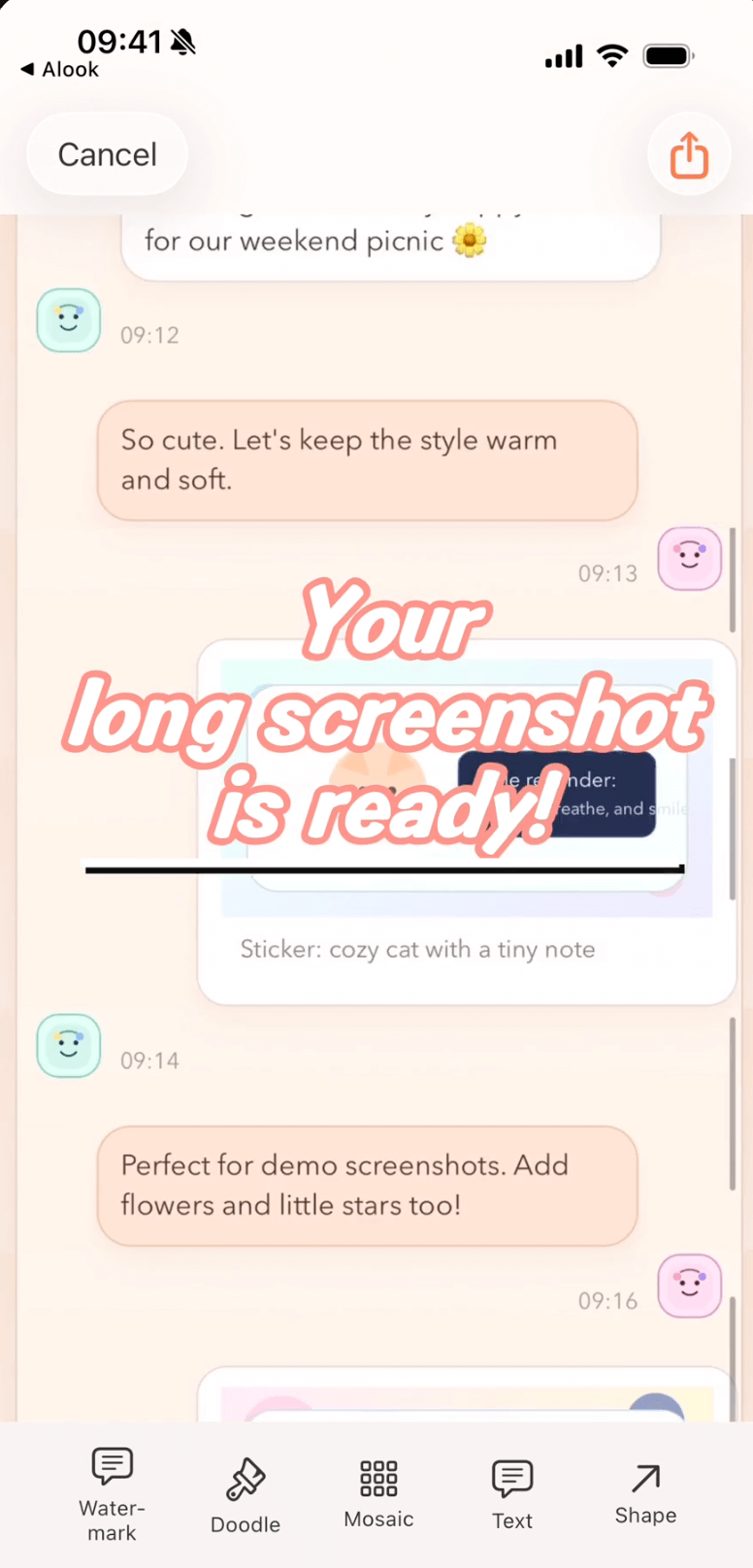
Five overlapping screenshots combined into one image in Scrollie — Smart Cleanup hid the scrollbars, Fine-tune magnifier aligns the seams.
Method 1 · iOS Markup (2–3 shots, manual)
iOS has no automatic stitching. What Markup gives you is a way to crop one screenshot at a time and stack them by hand — it works for two or three shots if you're patient.
- Take each screenshot the normal way, making sure each one overlaps the next by a few lines of visible content. That overlap is what your eye will match on later.
- Open the first screenshot in Photos, tap Edit, then the Markup pen icon.
- Use crop to trim off the status bar and any tab bars you don't want repeated in every frame.
- Open the second screenshot, crop it so the top of screenshot 2 lines up with the bottom of your cropped screenshot 1.
- Paste both images into a canvas that lets you stack them — the Notes app, a document you're sharing, or a third-party image tool. Repeat for a third shot if needed.
Honest limits: Markup doesn't detect overlaps, doesn't remove scrollbars, doesn't stitch into a single image file, and doesn't produce a clean seam. For a couple of shots it's workable; past three, it stops being pleasant.
Method 2 · The "Stitch Screenshots" Shortcut (free, no app needed)
There's a community Shortcut called Stitch Screenshots that many people have shared. It uses the Shortcuts app to concatenate a chosen batch of images into one tall image and save it back to Photos. It's free, works well for a specific job, and worth knowing about.
- Install the Shortcuts app if you haven't already — it's an Apple app, free from the App Store.
- Find a "Stitch Screenshots" Shortcut from a trusted source and add it to your library.
- Run it, pick the screenshots you want to combine, and it saves a tall image back to Photos.
Honest limits: the Shortcut concatenates images as-is — it doesn't detect overlap, so if two screenshots repeat the same three lines of content, the output shows those lines twice. There's no scrollbar removal, no editable seam, no way to fine-tune, no draft, and no way to add annotations or a mockup. If your screenshots don't overlap at all — for example, evenly-paged captures — the Shortcut is exactly right. If they do overlap, you'll see the duplication.
Method 3 · Scrollie (auto-overlap, Fine-tune, drafts)
Once the job is bigger — five screenshots of a chat thread, ten frames of a long article, or a receipt that scrolled across four screens — the manual and Shortcut paths stop being pleasant. This is the case a dedicated app is built for.
- Take several overlapping screenshots of the content you want to combine. A few lines of overlap between each is enough — Scrollie does the aligning.
- Open Scrollie, tap to pick the screenshots from your library, or share them in from Photos.
- Scrollie detects the overlap between frames automatically and assembles a single tall image. Smart Cleanup hides scrollbars and repeated UI edges so the seams read as continuous scroll.
- If a seam looks a pixel off, tap it and use Fine-tune — drag up and down with a magnifier overlay until the two halves line up exactly. Both vertical and horizontal stitching support Fine-tune.
- Trim any extra top or bottom off the finished long image, then add annotations, mosaic sensitive info, apply a device frame if you need one.
- Export as JPEG, PNG, HEIC, PDF, or evenly-sized slices. Preset a One-Tap Save target in Settings so the toolbar button skips the format dialog next time.
What makes this pleasant beyond the obvious: drafts. Every edit is auto-saved. If you close the app to answer a message, come back an hour later, and the seam you were adjusting is right where you left it. Portrait and landscape drafts are stored separately, so rotating the phone or importing a landscape screenshot in between won't overwrite the vertical chat you were assembling.
Quick comparison
| Method | Overlap detection | Fine-tune seams | Editable output | Drafts |
|---|---|---|---|---|
| Markup (manual) | No — by eye only | No | Manual only | No |
| Stitch Screenshots Shortcut | No — concatenates as-is | No | Saved image, no editor | No |
| Scrollie | Yes — auto | Yes — magnifier | Full editor | Yes — portrait & landscape |
When the free paths are enough: if you're combining two or three screenshots occasionally and the aesthetic quality doesn't matter — a rough stack in Markup, or a Shortcut that concatenates non-overlapping frames — the built-in and community paths are fine. Really. There's no reason to install a third app for a job you do twice a year.
Reach for Scrollie when you need better output quality (seams that don't look pasted), when you're combining more than a couple of shots, when the screenshots actually overlap and duplication would show, or when you want to keep editing afterwards — annotations, mosaic, Cleanup brush, a device mockup.
Frequently asked questions
Does iPhone have a built-in way to combine screenshots into one image?
No. iOS does not include a system-wide feature to stitch multiple screenshots into one tall image. You can crop and annotate one image at a time in Markup, and a community Shortcut called “Stitch Screenshots” can concatenate images, but neither detects the overlap between two screenshots or removes scrollbars. For anything more than two or three shots, a dedicated app is usually faster.
How does Scrollie combine multiple screenshots?
Take several overlapping screenshots, share them into Scrollie or pick them from the library, and Scrollie detects the overlap between frames automatically. Smart Cleanup hides scrollbars and repeated UI edges so seams look continuous. If a seam is slightly off, tap it and use the Fine-tune magnifier to drag the two halves into alignment. Both vertical and horizontal stitching are supported.
What if I get interrupted halfway through combining screenshots?
Every edit is auto-saved as a draft. Close the app, come back later, and pick up on the seam you were just adjusting. Portrait and landscape drafts are stored separately, so rotating the device or importing a landscape screenshot will not overwrite the vertical chat you were assembling.
Can I combine screenshots side-by-side instead of top-to-bottom?
Yes, horizontal stitching is supported for cases like wide dashboards, timelines, or table screenshots. For a fixed grid arrangement — 2 by 2, 3 by 3, or a template with 2 to 12 photos — use the Collage feature instead of the long-screenshot stitcher, since a grid is not the same job as a stitched sequence.
Is Scrollie free?
Yes, core features are free. Pro features come with a free trial, then a monthly or annual subscription or a one-time lifetime purchase — prices are shown in the app before purchase.
Related pages
One image, from many screenshots.
Core features free. Pro comes with a free trial, then a subscription or a one-time lifetime purchase.
Download Free on the App StoreiPhone & iPad · iOS 16 or later · 100% on-device