 Scrollie
Long screenshot app for iPhone — the full picture, from stitch to export
Last updated: 21 July 2026
iPhone's built-in screenshot stops at one screen. Everything past that — a chat, an article that scrolls for pages, a long receipt — has to be assembled. Scrollie is built around that job: give it a handful of overlapping screenshots or a scrolling screen recording, get one editable long image, with a magnifier for the seams and an auto-saved draft so you can walk away and come back.
The short answer: Scrollie makes long screenshots on iPhone two ways — stitch multiple screenshots (automatic overlap detection, Smart Cleanup of scrollbars, manual Fine-tune with magnifier) and turn a screen recording into one long image (auto-stop after the scroll ends, overscroll-back handled). It then keeps that long screenshot editable — annotate, mosaic, Cleanup brush, watermark — and exports to JPEG, PNG, HEIC, PDF or evenly-sized slices. Every edit is saved as a draft. Everything runs on the phone.
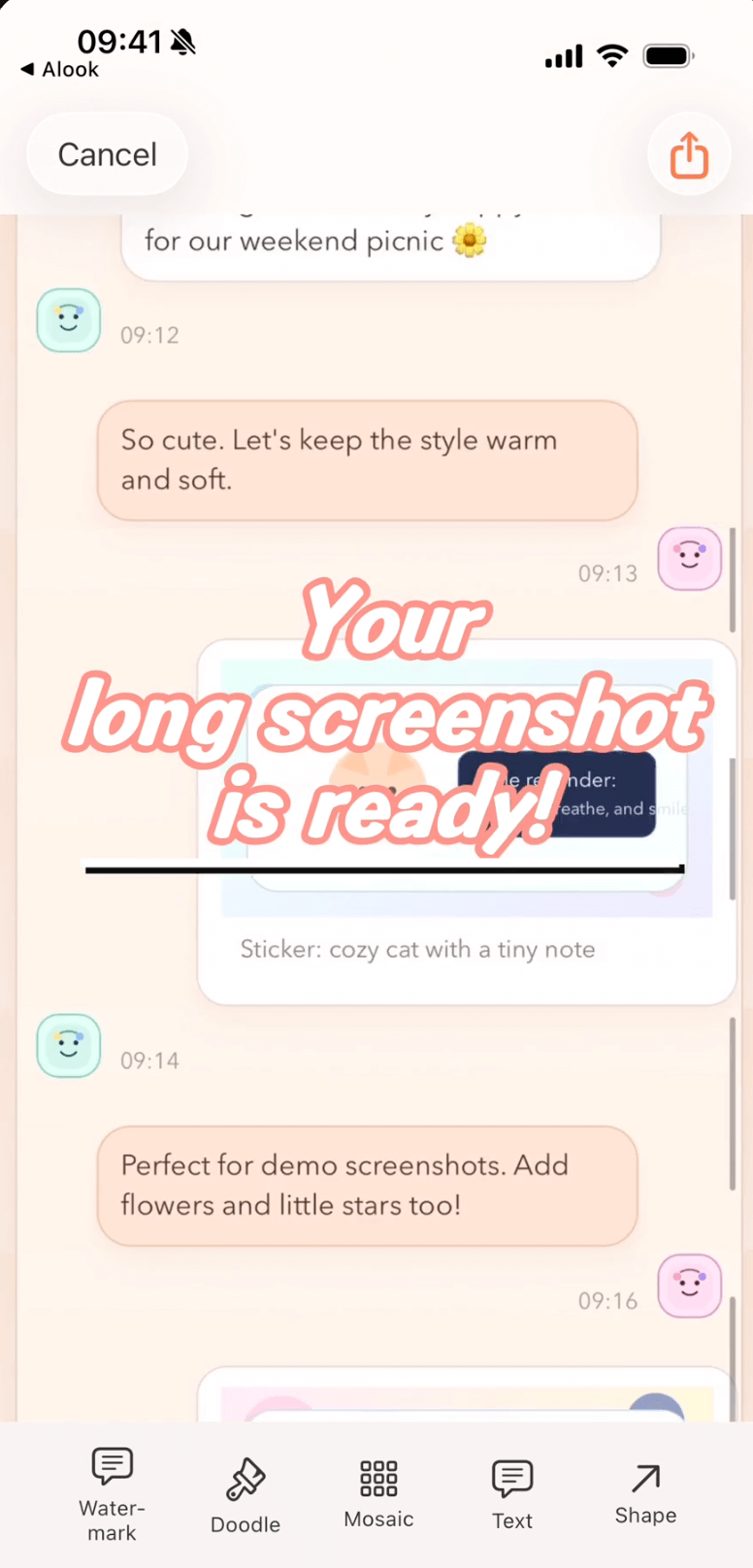
Long-screenshot editor: automatic stitch on top, Fine-tune magnifier for seams, editing toolbar for annotate, mosaic, Cleanup brush and watermark.
The two ways to make a long screenshot in Scrollie
1. Stitch multiple screenshots
Take several overlapping screenshots, then share them into Scrollie. It detects the overlap between frames and assembles one long image; Smart Cleanup removes scrollbars and repeated UI edges so seams look like continuous scroll. If a seam is slightly off, tap and drag with the Fine-tune magnifier. Both vertical and horizontal stitching support Fine-tune, and you can trim extra top and bottom off the finished image.
2. Turn a screen recording into a long image
When content scrolls for a while, a screen recording captures everything more reliably than a stack of screenshots. Start iOS Screen Recording, scroll at a comfortable pace, then stop. Scrollie extracts frames, recognises the moving region, and stitches them into one long screenshot. Two details make this pleasant:
- Auto-stop after scrolling ends — if the recording is still running but you stopped scrolling, Scrollie doesn't tack the still tail onto the long screenshot.
- Overscroll-back handled — if you scroll past and then scroll back, the long screenshot ends where you finally stopped, not the farthest point you overshot. Full walk-through in Screen recording to long screenshot.
The editor around the long screenshot
Making the tall image is only half the job. The other half is what you do before you send it:
- Annotate — text, arrows, doodles, stickers, in the same draft.
- Mosaic — pixelate names, faces, account numbers, order IDs.
- Cleanup brush — paint over anything you don't want (a tiled watermark, a passer-by, a stray UI badge) and Scrollie fills in the background from surrounding pixels.
- Auto watermark removal — one tap detects tiled text watermarks and erases only the watermark strokes, so text underneath is preserved.
- Custom watermark — add your own logo with auto background removal, tiled or as a corner badge.
- Device Mockup — wrap the long image in a real iPhone or iPad frame including iPhone 17 series colors; when exported as slices, each slice can be wrapped individually.
Export and pick up where you left off
Export in whichever format the destination expects — JPEG, PNG, HEIC, PDF, or evenly-sized slices for apps that reject very tall images. Under Settings → One-Tap Save you can preset defaults per format, so the toolbar's save button skips the dialog. If something interrupts you mid-edit, close the app; the draft persists, and portrait and landscape drafts are stored separately so rotating won't overwrite a chat you were assembling. URL Scheme and Shortcuts let you open the latest screenshot or recording directly.
What's free vs Pro
Core long-screenshot work is free: stitching multiple screenshots, turning a screen recording into a long image, Fine-tune seams, mosaic, annotations, and standard export. Pro features come with a free trial, then a monthly or annual subscription or a one-time lifetime purchase; prices are shown in the app before you commit. The paywall only appears when you reach for a Pro-only capability, so you can always try before you decide.
Setup steps
- Install Scrollie from the App Store. iPhone and iPad, iOS 16 or later.
- Grant Photos access so Scrollie can read your screenshots and recordings.
- For stitching: take overlapping screenshots, then pick or share them into Scrollie.
- For screen recording: add Screen Recording to Control Center, record while scrolling, then open Scrollie — the latest recording is one tap away.
- In the editor: Fine-tune seams, add annotations or mosaic, export in your preferred format, and preset One-Tap Save under Settings.
Honest limits: the screen-recording pipeline works best on content that scrolls uniformly. Pages with sticky headers or pull-to-refresh banners may need a manual Fine-tune on a seam or two — the magnifier is built for that. If you need full-page web capture in a single tap, that's not Scrollie's current strength; a dedicated tool like Picsew lists that capability. Scrollie doesn't advertise Widgets, a share extension or VoiceOver support today either.
Frequently asked questions
What is a long screenshot on iPhone?
A long screenshot is a single tall image that shows more than one screen of content — an entire chat, a whole article, or a full receipt — as if the phone had a taller display. iPhone does not produce one directly; you either stitch several ordinary screenshots together or turn a screen recording into one long image. Scrollie does both, keeps the result editable, and saves every step as a draft.
Does Scrollie need internet or upload my screenshots?
No. All stitching, recording processing, editing and export happen on the phone. Your screenshots and recordings are never uploaded. The only network request the app makes is App Store receipt verification for purchases.
Can I fix a bad seam after stitching?
Yes. Tap any seam and drag it up or down with a magnifier overlay to align the two halves precisely. Vertical and horizontal stitching both support Fine-tune, and you can trim extra pixels off the top or bottom of the finished long screenshot.
What can I export?
JPEG, PNG, HEIC, PDF, or the image sliced into evenly-sized pieces. In Settings you can preset a One-Tap Save target for each format so the toolbar button in the editor matches the export you use most.
Is Scrollie free?
Core stitching and screen-recording-to-long-screenshot are free. Pro features come with a free trial, then a monthly or annual subscription or a one-time lifetime purchase — prices are shown in the app before purchase.
Related pages
The whole long screenshot, in one place.
Core features free. Pro comes with a free trial, then a subscription or a one-time lifetime purchase.
Download Free on the App StoreiPhone & iPad · iOS 16 or later · 100% on-device