 Scrollie
Picsew alternative for iPhone — the layer around the long screenshot
Last updated: 21 July 2026
Picsew has stitched iPhone screenshots for nearly a decade and its App Store description lists a genuinely full toolkit: scrollshot recording, full-page web capture, PDF export, device frames, blur, annotations and a 300-image-per-batch pipeline. If stitch and save is all you need, Picsew is a fine tool and there's no reason to switch. If your workflow keeps spilling past the stitch itself — coming back to an edit tomorrow, arranging photos in a template collage, erasing an object out of a screenshot, or detecting a tiled watermark you didn't ask for — Scrollie is the layer around that core that Picsew's description does not cover.
The short answer: Same long-screenshot core (stitch, screen recording, manual seam adjust, PDF export, device mockup). What's specifically Scrollie: an auto-saved Drafts inbox with separate portrait/landscape recovery, template-based collages for 2–12 photos with auto-grouping by trip, a Cleanup brush that erases objects, and auto detection of tiled text watermarks. Everything runs on-device.
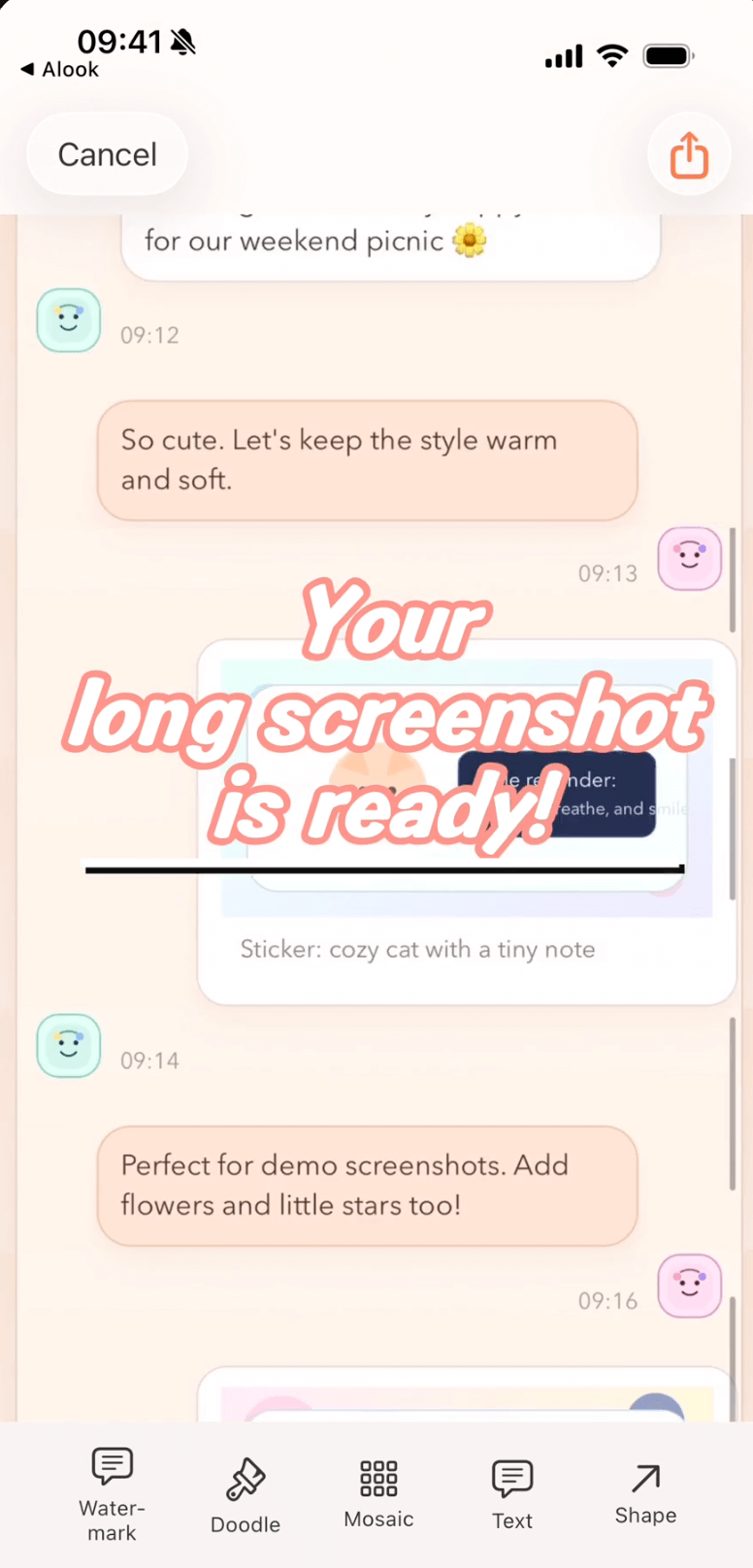
Long screenshot editor with drafts, collage, Cleanup brush and watermark detection in one draft file.
What Picsew does — and Scrollie does too
Before the differences, an honest map of the overlap. Both apps handle these:
- Multi-screenshot stitching with automatic overlap detection and manual fine-tune
- Screen recording → long screenshot (Picsew's "Scrollshot recording", Scrollie's screen-recording pipeline)
- Photo stitching (vertical, and horizontal in the Collage view)
- Device frames / mockup
- Blur, text, annotations, borders, watermarks
- PDF export, slice export, high-resolution image export
- Runs entirely on the phone
You'll find people online arguing Picsew's core stitching is faster or that Scrollie's manual seam tool has a nicer magnifier — both are true in different moments. But the core job is a tie. The real reason to switch is the layer around it.
Where Scrollie adds a layer Picsew's description does not
| Capability | Scrollie | Picsew (as listed on the App Store) |
|---|---|---|
| Drafts inbox, auto-saved | ✓ Every edit persists as a draft, portrait & landscape stored separately, resume later | — Not listed |
| Template collage (2–12 photos) | ✓ Templates, ratios, borders, backgrounds; per-cell reframe / rotate / flip / edit | — Picsew lists "photo stitching" but not template-based collages |
| Auto-group photos into collages by trip | ✓ By capture time, place and content | — Not listed |
| Cleanup brush (erase object / watermark by painting) | ✓ Paint over an object, auto-fill background | — Picsew lists watermark adding, not removal |
| Auto detect & erase tiled text watermarks | ✓ One-tap | — Not listed |
| Overscroll-back handling in screen recording | ✓ Long screenshot ends on the frame where you finally stopped | — Not listed |
| Device mockup with iPhone 17 series official colors | ✓ Multiple iPhone 17 models & colors | ✓ "device frames" (generic, models not specified) |
| Export HEIC | ✓ Alongside JPEG / PNG / PDF / slices | — Picsew lists PDF / slices / high-res, not HEIC specifically |
| URL Scheme & Shortcuts to open the latest screenshot / recording | ✓ | — Not listed (Picsew's description doesn't mention Shortcuts) |
Source: Picsew's App Store description as of 2026-07-21. "Not listed" means Picsew's official copy does not advertise that capability — it does not mean the app cannot do it at all. Compare with your own use case.
The Drafts moment — why it matters more than it looks
People rarely finish an edit in one sitting. You're in a queue, you take a scrolling recording, you start stitching, then the meeting starts. In most long-screenshot apps, "come back later" means starting over. In Scrollie, that edit is already saved as a draft the moment you touched it; you re-open the app, tap the draft, and continue from the exact seam you were dragging. Portrait and landscape drafts are stored separately, so rotating the phone or importing a landscape recording doesn't overwrite the vertical chat you were assembling.
Picsew's App Store description does not list a drafts inbox. Neither do Tailor, Stitch It's US listing, StitchPics, Zeta, ScrollShot, Longshot or the "Stitch" long-screenshot app. Of the eleven competitors we checked, only Stitch It's Chinese description mentions "auto-save" — and that's about saving finished images to the photo library, not preserving in-progress edits. A durable drafts inbox is unusual in this category.
Cleanup brush and auto watermark removal — the "post-stitch" tools
Long screenshots often carry along things you'd rather not share: a repeating "confidential" watermark tiled across an internal doc, a passerby in a photo you're putting in a collage, a UI badge you don't want on the final image. Picsew's toolkit lets you add watermarks and blur; Scrollie also lets you remove them:
- Cleanup brush — paint over any object, watermark or piece of text. The area is filled in to match the surrounding background, so a bystander disappears into the sidewalk and a stray label vanishes into the wallpaper behind it.
- Auto watermark removal — detect tiled repeating text watermarks in one tap. Version 2.0 sharpened this: it erases only the watermark strokes, so text underneath the watermark is preserved instead of being wiped along with it.
When Picsew is still the better choice: if your job is capture a full webpage in one tap, Picsew explicitly lists that capability and it's a first-class flow — Scrollie's App Store description does not currently list full-page web capture. Picsew also lists Widgets, a share extension and VoiceOver support, and it advertises a specific 300-image-per-batch limit that signals industrial-strength throughput. And Picsew has years of App Store reviews (3,000+ US, 50,000+ CN) — that trust is real and worth weighing.
Reach for Scrollie the day your workflow moves past the stitch itself: coming back to an edit tomorrow, arranging photos in a template collage, wiping an object off a screenshot, or removing a watermark instead of adding one.
Trying Scrollie alongside Picsew: a 5-minute walk-through
- Install Scrollie from the App Store. Keep Picsew installed too — this is not either-or.
- Open a chat, take three overlapping screenshots the way you would for Picsew. Share them into Scrollie; watch the automatic stitch, then Fine-tune the middle seam by dragging with the magnifier.
- Close the app in the middle of the edit. Open it again. Your draft is right there — portrait or landscape recovered separately.
- Try the collage flow: pick 6 recent photos from a trip, let Scrollie auto-group them by capture time and place, then edit each cell (rotate, crop, mosaic, cleanup brush).
- Try the Cleanup brush on a screenshot with a company watermark: paint once and let the background fill in.
Frequently asked questions
How is Scrollie different from Picsew for long screenshots?
For the core job — stitching multiple screenshots or turning a screen recording into one long image — both apps do it well and Picsew has years of polish. Scrollie's differences show up in what surrounds that core: an auto-saved Drafts inbox with separate portrait and landscape recovery, template-based photo collages (2–12 photos), a Cleanup brush that erases objects or watermarks, and one-tap detection of tiled text watermarks. Picsew's official App Store description does not list those.
Does Scrollie have a drafts inbox like a real editor?
Yes. Every edit is auto-saved as a draft, so you can put your phone down and come back later without losing progress. Portrait and landscape drafts are stored separately, so switching orientation does not overwrite what you were working on.
Can Scrollie make photo collages, not just long screenshots?
Yes. Freely arrange 2–12 photos with templates, ratios, borders and backgrounds. Each cell can be reframed, rotated or flipped, and edited with doodle, text, stickers, mosaic, cleanup brush or watermark. You can also auto-group a batch of photos into collages by capture time, place and content.
What does Picsew do that Scrollie does not?
Picsew's official description lists one-tap full-page web capture, a documented 300-image-per-batch limit, plus Widgets, a share extension and VoiceOver support. Those are not listed on Scrollie's App Store description today. Picsew also has a much larger review count on the App Store, which is worth weighing for stability signals.
Is Scrollie free?
Yes, core features are free. Pro features come with a free trial, then a monthly or annual subscription or a one-time lifetime purchase — prices are shown in the app before purchase.
Related pages
Same stitch. Add drafts, collage and cleanup.
Core features free. Pro comes with a free trial, then a subscription or a one-time lifetime purchase.
Download Free on the App StoreiPhone & iPad · iOS 16 or later · 100% on-device