 Scrollie
Photo collage app for iPhone — 2 to 12 photos, edited per cell
Last updated: 22 July 2026
Most "photo collage" apps on iPhone stop at the arrangement. You pick a template, drop photos in, export. Fine — until the cell in the top-left has a stranger in it, the middle cell needs a caption, and tomorrow you want to swap two photos without redoing anything. Scrollie is built around that second half: 2–12 photos with real templates, and every cell is its own little editor — doodle, text, stickers, mosaic, Cleanup brush and watermark right inside the cell, plus drag-to-swap, plus an auto-saved draft so tomorrow-you doesn't start over.
The short answer: Scrollie's photo collage on iPhone gives you 2–12 photo templates with adjustable ratio, borders and background; per-cell reframe, rotate and flip; per-cell layering of doodle, text, stickers, mosaic, Cleanup brush and watermark; vertical and horizontal long-image stitching from the same picker; auto-grouping a big photo batch into several ready-made collages by capture time, place and content; and auto-saved drafts so you can walk away and come back. As of v2.0.1, you swap cells by simply dragging one photo onto another.
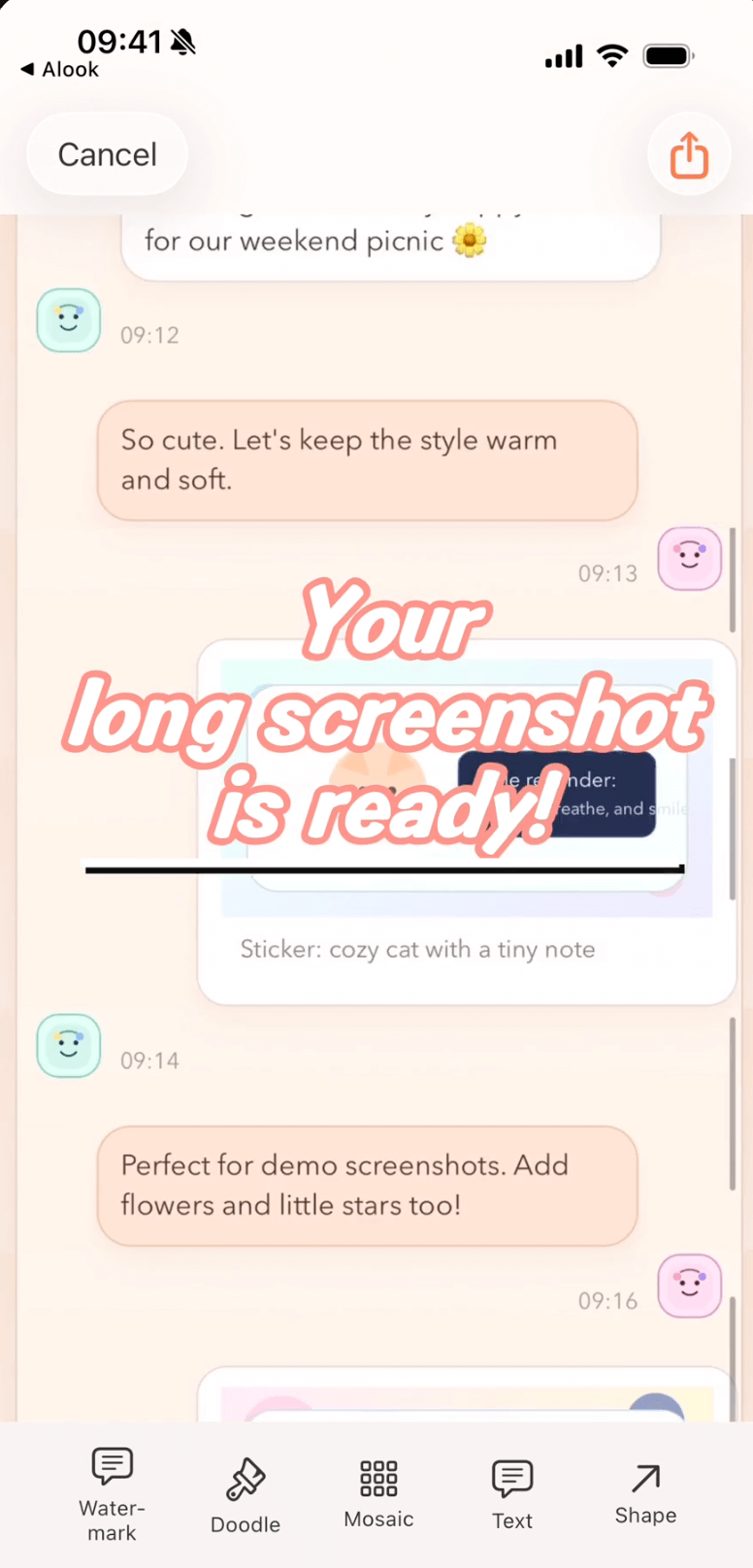
Collage editor: template picker on top, per-cell edits (doodle, text, mosaic, Cleanup, watermark) on the bottom, drafts row on the home screen.
2 to 12 photos, and templates that adapt
The starting point is the template picker. Choose from grid templates that scale from 2 photos up to 12, then adjust the aspect ratio (square for Instagram, tall for stories, landscape for a home screen), the border thickness, and the background — solid color, gradient, or blurred from the imported photos themselves. Nothing you set here is destructive; the underlying photos aren't cropped away, they're just framed. Change your mind about the template later and every photo re-flows into the new arrangement.
Each cell is a mini editor
Once photos are in the cells, tap any cell to enter its own editor without leaving the collage. Inside a cell you can:
- Reframe / rotate / flip — pan the photo inside the cell frame, rotate in 90° steps, or flip horizontally / vertically.
- Doodle — freehand drawing on top of that one cell.
- Text — captions, stickers-style callouts, timestamps in a font that reads well at collage scale.
- Stickers — emoji-style overlays on a single cell without cluttering neighboring cells.
- Mosaic — pixelate a face, a licence plate, an account number inside just that one cell.
- Cleanup brush — paint over an unwanted person or watermark; Scrollie fills the background from surrounding pixels. This is not present in any of the 11 competitor App Store descriptions we surveyed.
- Watermark — a per-cell logo, tiled or as a corner badge, with automatic background removal.
When the collage is done, every per-cell edit is remembered inside the draft, so you can come back and tweak one cell without disturbing the others.
Drag one photo onto another to swap (v2.0.1)
Swapping cells is the most common late-stage edit — "actually, that one belongs top-right, not bottom-left." As of Scrollie 2.0.1, the swap is a direct drag: press a photo, drag it onto the target cell, release. The two cells trade contents. Every other edit on the collage — template, borders, per-cell mosaic in the middle cell, the caption on the top row — stays exactly where it was. No long-press menu, no swap-mode toggle.
Not just grids — vertical and horizontal long-image stitching
The same photo picker also feeds a long-image stitch: pick a set of photos and, instead of a grid, arrange them into one tall image or one wide image with the borders and background you already set up. That means the "photo collage" workflow and the long-screenshot workflow live in the same app and share the same drafts inbox — one editor, two shapes.
Big photo batches: auto-group into ready-made collages
Coming home from a trip with 200 photos and building 20 collages by hand is where a lot of collage apps quietly break down. Scrollie splits that job for you: pick a large batch, and it auto-groups by capture time, place and content into several ready-made 2–12 collages, one per group. From v2.0.1 the batch "save all" step lets you pick which album to save into — or create a new album on the spot — so a whole trip becomes one album of collages in one tap. Deep dive on Auto-group photos into collages.
Drafts — walk away and come back
Collage-building rarely finishes in one sitting. Scrollie treats the collage as a live working file: every time you touch it, that state is captured. Close the app, take a call, let the phone die — the draft is on Scrollie's home screen the next time you open it, with every per-cell edit exactly where you left it. Portrait and landscape drafts are stored in separate lanes, so importing a landscape source doesn't clobber the portrait collage you were assembling. Full walk-through on Drafts & auto-save.
What's free vs Pro
Core collage building — 2–12 templates, per-cell reframe / rotate / flip, doodle, text, stickers, mosaic, standard export — is free. Pro features come with a free trial, then a monthly or annual subscription or a one-time lifetime purchase; prices are shown in the app before you commit. Everything runs on the device; the photos you drop into a collage are never uploaded.
Setup steps
- Install Scrollie from the App Store. iPhone and iPad, iOS 16 or later.
- Grant Photos access so Scrollie can read the photos you want to collage.
- Open the collage tab and pick 2 to 12 photos, or a larger batch to let auto-grouping do the split.
- Choose a template, then tap any cell to enter its editor for reframe, mosaic, Cleanup brush and captions.
- Drag one photo onto another to swap cells (v2.0.1).
- Export as JPEG / PNG / HEIC or PDF, or save the batch to a picked album; the draft stays for tomorrow.
Honest scope: if what you want is a sticker-heavy, social-first collage app with a huge sticker and font library — many people reach for PicCollage, and it leans in that direction. Scrollie's collage is oriented toward photo-and-screenshot workflows in one app: the same editor that gives you long screenshots, Cleanup brush and Device Mockup also does the collage. Which is better depends on whether you want a sticker studio or a photo/screenshot toolbox.
Frequently asked questions
How many photos can I put into one Scrollie collage?
Between 2 and 12 photos per collage. Pick a template, then adjust the aspect ratio, border thickness and background to taste. If your set of photos is larger than that, use auto-grouping — Scrollie splits a big batch into several ready-made collages by capture time, place and content, so you get multiple 2–12 collages instead of one crowded one.
Can I edit each cell inside a collage, not just the whole thing?
Yes. Every cell can be reframed, rotated and flipped independently. On top of that you can layer doodle, text, stickers, mosaic, Cleanup brush strokes and a watermark on a single cell without leaving the collage view. When you re-open the draft, all of those per-cell edits are still where you left them.
How do I swap two photos between cells?
From version 2.0.1 onwards, just drag one photo directly onto another cell — the two swap places. No long-press menu, no dedicated swap mode. The rest of the collage — the template, borders, per-cell edits on any other cell — stays exactly as it was.
Does Scrollie do vertical or horizontal long stitching, not only grid collages?
Both. You can build a vertical long-image stitch or a horizontal one from the same photo picker, in addition to the grid templates. That means a long-screenshot workflow and a photo-collage workflow live inside the same app and share the same drafts inbox.
Is Scrollie free? And what happens to the photos I import?
Core collage building is free. Pro features come with a free trial, then a monthly or annual subscription or a one-time lifetime purchase — prices are shown in the app before purchase. All processing happens on the device; the photos you import are never uploaded to a server.
Related pages
Every cell, its own editor — every collage, its own draft.
Core features free. Pro comes with a free trial, then a subscription or a one-time lifetime purchase.
Download Free on the App StoreiPhone & iPad · iOS 16 or later · 100% on-device