 Scrollie
Stitch multiple screenshots on iPhone — auto overlap plus manual Fine-tune
Last updated: 22 July 2026
A chat, an article, a scrolling receipt — the interesting stuff never fits in one iPhone screenshot. So you take a stack of overlapping ones, then need something to align them into a single tall image without visible seams. Scrollie is built around that job: auto overlap detection that recognises where each frame joins the next, Smart Cleanup that removes scrollbars and repeated UI edges, a Fine-tune magnifier for the moments when auto isn't perfect, and drafts that auto-save so a long stitch can pause and resume.
The short answer: Take overlapping screenshots, share them into Scrollie, and you get one continuous long image. If a seam looks off, tap it and drag with the Fine-tune magnifier until pixels line up. Works vertically for chats and articles, horizontally via Collage for side-by-side layouts. Export as JPEG, PNG, HEIC, PDF, or evenly-sized slices. Drafts auto-save, portrait and landscape kept separate, everything on-device.
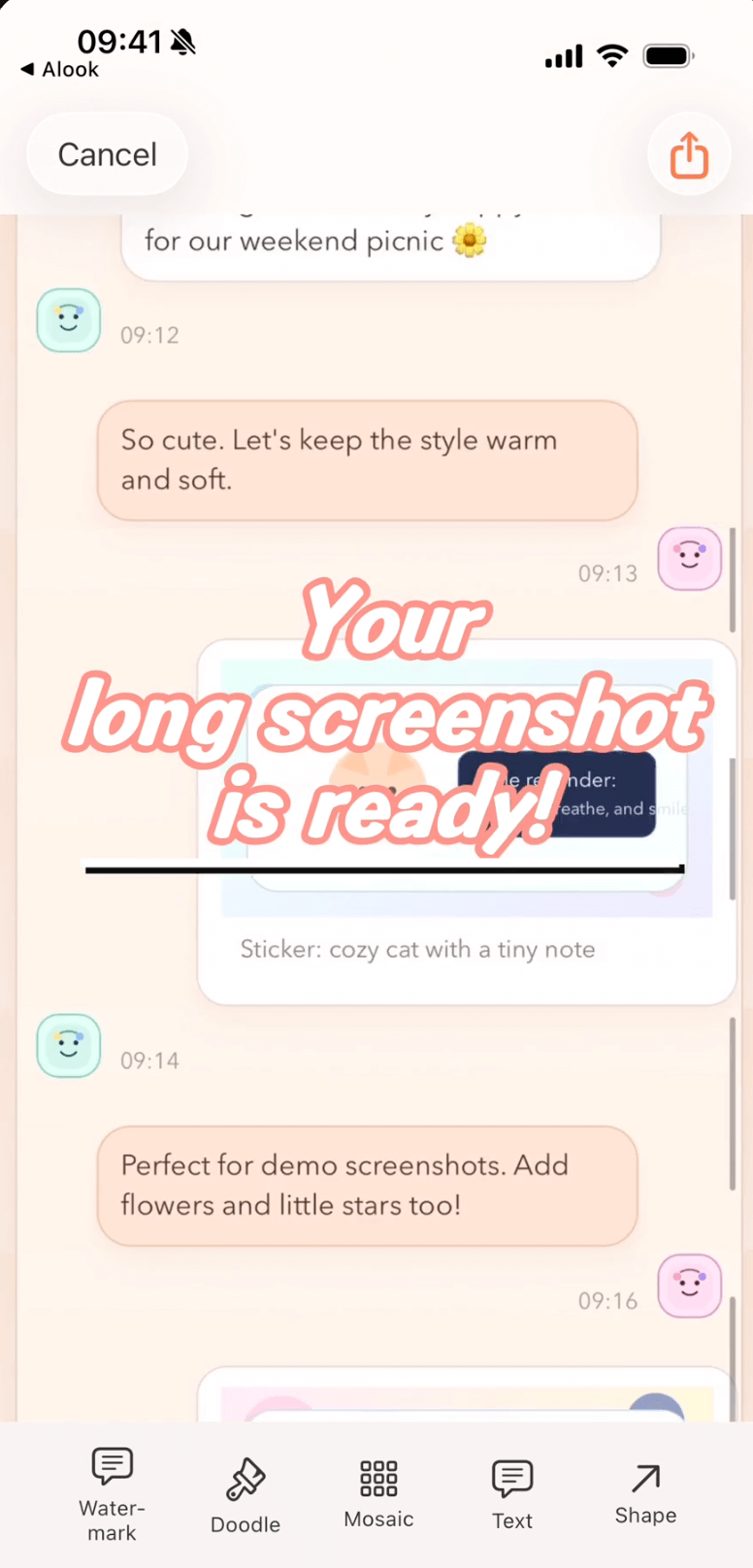
Multiple screenshots stitched into one continuous long image; tap any seam to open the Fine-tune magnifier and align pixels 1:1.
The six pieces of the stitching workflow
1. Auto overlap detection (Smart overlap)
When you pass Scrollie two overlapping screenshots, it doesn't just concatenate them end-to-end — it compares pixel regions near the boundary and finds the exact overlap, so the join lands where the two frames actually agree on content. This is the difference between a long image that reads as one continuous scroll and one where you can see the seam. It works whether you took the screenshots seconds apart in a chat, or minutes apart across a scrolling article.
2. Smart Cleanup — scrollbars gone automatically
Every scrollable iOS view draws a scroll indicator, and different apps put UI elements — status bars, tab bars, floating buttons — at different positions on each frame. Smart Cleanup detects and removes scrollbars automatically as part of the stitch, so the finished long image doesn't carry three different scrollbar segments running down its side. Manual stitching in Scrollie's long-screenshot mode also runs Smart Cleanup, so you get a cleaner result either way.
3. Fine-tune tool with magnifier — when auto isn't perfect
Auto overlap detection is right most of the time; when it's not, Scrollie doesn't leave you stranded with a baked-in seam. This is where Fine-tune (added in v1.4) does the real work:
- Tap the seam. A magnifier overlay opens, showing the pixels around the join at 1:1.
- Drag up or down. The two halves shift relative to each other. Match a distinctive edge — a word, a UI element, a line of text — and let go.
- Trim top and bottom. Same view lets you crop any extra pixels off the beginning or end of the finished long screenshot.
- Works both directions. Vertical and horizontal stitching both open the same magnifier for seams.
The magnifier is small and specific; it doesn't blow the image up on your whole screen. What it does is give you enough precision that you can align pixels exactly, without leaving the editor.
4. Vertical + horizontal stitching
Most of the time you want a vertical long screenshot — chats, articles, feeds all scroll top-to-bottom. Scrollie's long-screenshot mode is built for that. When your source is wider than tall — a spreadsheet, a timeline, a side-by-side comparison — the Collage view gives you horizontal stitching with the same auto-overlap and Fine-tune magnifier. Portrait and landscape drafts are stored separately, so switching orientation mid-project doesn't overwrite what you were working on.
5. Drafts auto-save — resume complex stitches later
Long stitches take time. You're in a queue when the meeting starts; you took 12 screenshots and only stitched 8; you need to swap apps to check something. In Scrollie every edit is auto-saved as a draft the moment you touched it — reopen the app, tap the draft, continue from the exact seam you were on. Portrait and landscape drafts sit in separate slots. Of the eleven competitors we surveyed, this "resume an in-progress edit" behaviour didn't show up in any of their official App Store descriptions.
6. Export in the format your destination wants
A finished long screenshot means different things to different destinations:
- JPEG — universal fallback, smallest file.
- PNG — lossless, keeps sharp text.
- HEIC — modern Apple format, great compression for tall images.
- PDF — send a whole chat or receipt as one document; multi-page if you want.
- Slices — for platforms that reject very tall images (Instagram, some upload dialogs). Scrollie evenly cuts the long image into pieces; when exporting sliced, each slice can also be wrapped in a device frame individually.
Under Settings → One-Tap Save you can preset a default target per format, so the editor's save button skips the format dialog for the export you use most.
Free vs Pro at a glance
| Capability | Free | Pro |
|---|---|---|
| Auto stitch with overlap detection | ✓ | ✓ |
| Smart Cleanup of scrollbars | ✓ | ✓ |
| Fine-tune magnifier for seams | ✓ | ✓ |
| Vertical + horizontal stitching | ✓ | ✓ |
| Drafts auto-save (portrait & landscape separate) | ✓ | ✓ |
| Basic export (JPEG, PNG) | ✓ | ✓ |
| HEIC / PDF / sliced export | Preview | ✓ Full |
| Custom watermark, device mockup, Cleanup brush | Preview | ✓ Full |
| One-Tap Save presets | Preview | ✓ Full |
Pro comes with a free trial, then a monthly or annual subscription or a one-time lifetime purchase — prices are shown in the app before purchase.
How to stitch — step by step
- Take overlapping screenshots. Aim for roughly 20–30% overlap between consecutive frames; that gives Scrollie's auto-overlap plenty of signal.
- Open Scrollie, or share the screenshots into it directly from Photos.
- Watch the auto-stitch. Scrollie assembles the frames, Smart Cleanup strips scrollbars.
- Scan the seams. Zoom the preview; anywhere the pixel line doesn't match, tap that seam.
- Fine-tune. The magnifier opens; drag up or down until a distinctive edge lines up. Repeat for any other off seams.
- Trim top and bottom if the first screenshot's status bar or the last screenshot's tab bar shouldn't be in the final image.
- (Optional) edit. Annotate, mosaic sensitive fields, add a watermark, wrap in a device frame.
- Export. JPEG, PNG, HEIC, PDF or evenly-sized slices — or hit the preset One-Tap Save button.
Honest scope: auto overlap works best when consecutive screenshots share a large, texture-rich common region. Very heterogeneous inputs — different apps, different background patterns, mixed light/dark mode across frames — may need manual Fine-tune on one or two seams. That's expected and normal; the Fine-tune magnifier exists exactly for those moments. Full-page web capture in one tap is a different flow — see the Picsew comparison for that use case.
Frequently asked questions
How does Scrollie know where two screenshots overlap?
Scrollie compares pixel regions near the bottom of one screenshot with the top of the next and locks onto the matching overlap. Smart Cleanup then removes scrollbars and repeated UI edges so the join reads like continuous scroll rather than a visible seam. If the automatic guess is a few pixels off, tap the seam and use the Fine-tune magnifier to nudge it into place.
What happens when auto-stitch isn't perfect?
That's what the Fine-tune tool is for. Tap any seam and drag it up or down; a magnifier overlay shows you the pixels around the join at 1:1 so you can align two halves exactly. Vertical and horizontal stitching both support Fine-tune, and you can trim any extra top or bottom pixels off the finished long screenshot in the same view.
Can I stitch horizontally instead of top-to-bottom?
Yes. Scrollie handles vertical stitching for long chats and articles, and horizontal stitching via the Collage view for wide layouts and comparisons. Both directions get the same auto-overlap and Fine-tune magnifier. Portrait and landscape drafts are stored separately, so a horizontal edit won't overwrite a vertical one.
How many screenshots can I stitch at once?
Scrollie doesn't advertise a hard batch limit — take as many overlapping screenshots as your chat, article or receipt needs. Very heterogeneous inputs (different apps, different background patterns) may need manual Fine-tune on one or two seams; that's expected. Drafts auto-save at every step, so long stitches can be paused and resumed later.
What formats can I export a stitched long screenshot to?
JPEG, PNG, HEIC, PDF, or the image evenly sliced into pieces for platforms that reject very tall images. Under Settings → One-Tap Save you can preset a default target per format, so the toolbar's save button skips the dialog. When exporting as slices, each slice can also be individually wrapped in a device frame.
Related pages
Stitch it, then Fine-tune it.
Core features free. Pro comes with a free trial, then a subscription or a one-time lifetime purchase.
Download Free on the App StoreiPhone & iPad · iOS 16 or later · 100% on-device