 Scrollie
Save a chat conversation as one long image on iPhone
Last updated: 22 July 2026
You need to send someone a whole conversation — the funny bit, the receipt for a group order, the argument for a friend's opinion — and the exchange is dozens of messages long. One screenshot won't fit it. WhatsApp, iMessage, WeChat, Telegram, LINE — none of them ship a "save chat as image" button. The workaround is to capture the chat visually, either as multiple overlapping screenshots stitched together, or as a screen recording that gets processed into a long still image. Here's how both work on iPhone, plus how to hide the messages you'd rather not share.
The short answer: For a short thread, take three or four overlapping screenshots and stitch them in a long-screenshot app. For a long thread, use iOS's built-in Screen Recording to scroll through the whole chat once, then process the recording into one long image. Before you share it, use mosaic to pixelate names and phone numbers, or the Cleanup brush to make specific messages look like they were never there. Everything runs on-device — chats are never uploaded.
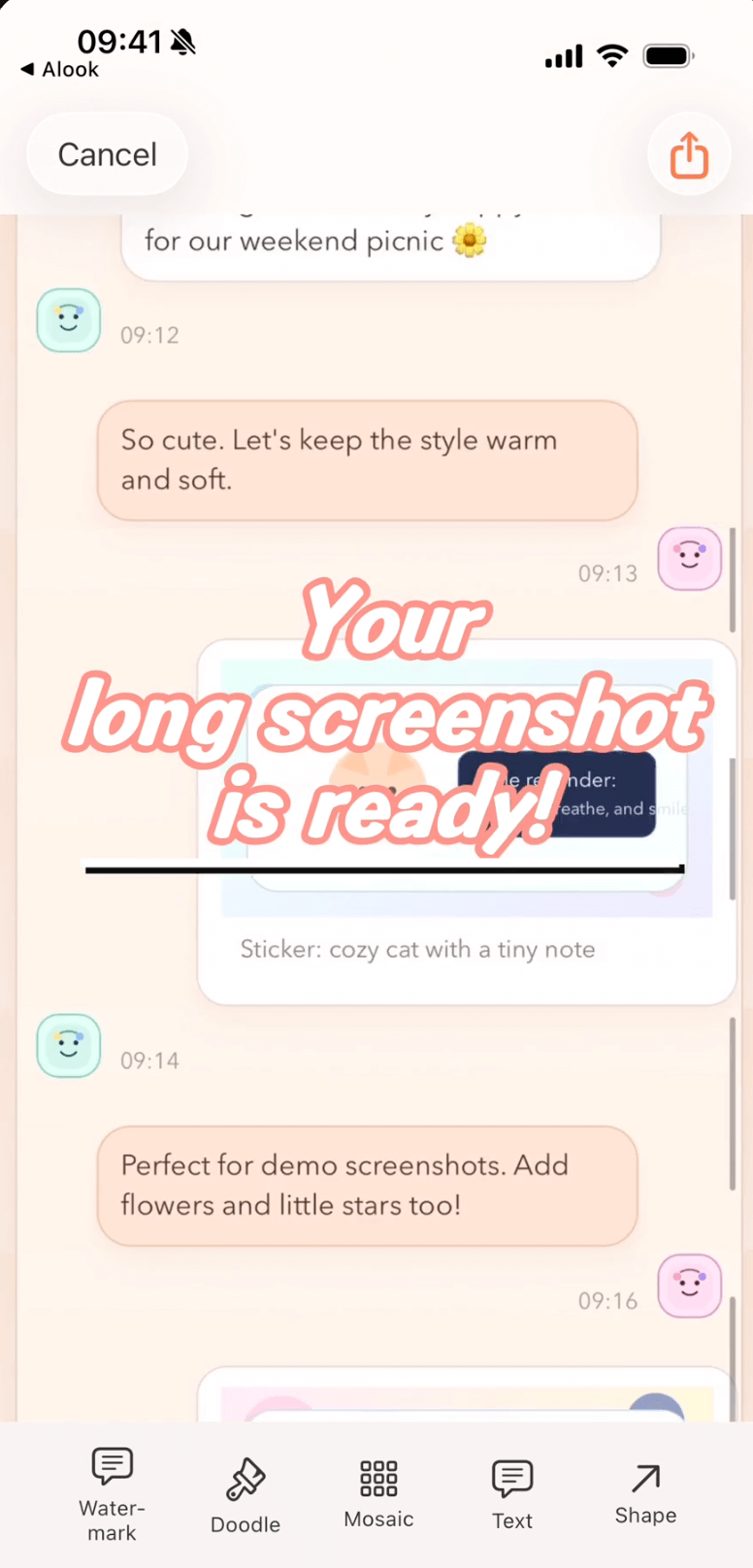
A long chat, captured once and edited before sharing. Mosaic and Cleanup brush live in the same editor as the stitcher.
Path 1 · Manual screenshot stitching (short chats)
This is the direct approach and it works well when the conversation is short. The key is overlap: each screenshot has to share a few messages with the previous one, so the stitcher (or your eyes) can line them up.
- Open the chat and scroll to the point where you want the long image to start.
- Take a screenshot: press side button + volume-up.
- Scroll down just enough that the top few messages of the next screen are the bottom few of the previous one — usually one thumb-swipe with a small pull-back. Take another screenshot.
- Repeat until you reach the end of the conversation you want to save.
- Open Scrollie, pick the screenshots from your library (or share them in from Photos), and let the automatic stitcher do the alignment. Any seam you don't like, tap it and use Fine-tune — a magnifier appears and you drag until the seam is invisible.
This works cleanly for two to about eight screenshots. Beyond that, taking that many shots gets tedious and errors creep in — that's when you switch to Path 2.
Path 2 · Screen recording (long chats)
iOS has a built-in Screen Recording feature in Control Center. You scroll through the chat once, at a steady pace, and end up with one video that captures everything. A long-screenshot app can turn that video into a single tall image — no matter how many screens the conversation spans.
- Add Screen Recording to Control Center if it isn't already there: Settings → Control Center → tap the + next to Screen Recording.
- Open your chat app and scroll to the top of the conversation you want to capture.
- Swipe down from the top-right corner of the screen to open Control Center. Tap the record button. Wait for the 3-second countdown.
- Slowly scroll down through the entire chat at a steady pace. Don't lift your finger between drags too quickly — a smooth, unhurried scroll gives the cleanest recording.
- When you've reached the end, tap the red pill in the status bar and choose Stop. On iOS 18 and later, Scrollie also supports auto-stop when you stop scrolling. The recording lands in Photos.
- Open Scrollie and pick the latest recording. It processes the video into one long still image; if you overscrolled and pulled back at any point, that gets handled so the final image ends where you actually stopped.
Doing it properly with Scrollie
Both paths above land in the same place — Scrollie's editor with a long image ready to trim. The features that matter for chats specifically:
- Fine-tune with a magnifier — for stitched screenshots, each seam is tappable and adjustable pixel-by-pixel. This matters more with chat bubbles than with plain text: half a message clipped mid-bubble looks wrong immediately.
- Overscroll-back handling for recordings — everyone accidentally scrolls a bit too far and pulls back. Scrollie's processor won't smear the last frames; it uses the frame where you truly stopped as the end.
- Auto-stop on scrolling pause (iOS 18+) — the recording ends when you stop scrolling, so you don't have to tap the red pill and add another few seconds of Control Center to trim later.
- Drafts — if you get interrupted mid-edit, your work is auto-saved. Come back tomorrow and continue from the exact seam or message you were on.
Edit before you share — hiding the messages that shouldn't leave the chat
Long chat exports are a privacy hazard. Names, phone numbers, addresses, health details, salary numbers, ex-partners — a single long image will happily broadcast whatever the chat contained. Two tools inside Scrollie handle this properly:
- Mosaic — drop a pixelated block over any area with a rectangle or a brush. Good for names, phone numbers, verification codes, and other short things where you want the reader to see "there was something here, but you don't need to see what."
- Cleanup brush — paint over a message and the pixels are erased entirely, then filled in to match the chat background. Useful when you want the message to look like it was never there. Real example: erase the message about salary before showing the rest of the chat to your parents. The message stops existing as far as the image is concerned.
- Watermark or logo overlay — add a corner badge or a tiled watermark before sharing publicly, so a screenshot re-share is traceable back to your export.
Privacy note, in plain English: everything above happens on-device. Scrollie does not upload chats, screenshots or recordings anywhere. The only network request the app makes is to validate an App Store purchase receipt when you buy Pro. That means an internal work chat, a family group, or a private conversation stays on your phone even while the app is stitching, recording-processing, or brushing it.
Export choices for a shareable long image
- JPEG — smallest, best for sending through chat apps.
- PNG — larger, no compression artifacts, best when the chat has small text or you're forwarding to a designer.
- HEIC — smallest quality-for-size on iPhone; great for iCloud storage, less friendly for people on Windows.
- PDF — single file with multiple pages if the image is very tall; nice for emailing a chat as evidence.
- Slice into pieces — cut the tall image into equal-height slices so it's easier to view without pinch-zooming.
Frequently asked questions
Can I export a WhatsApp or iMessage chat as one long image on iPhone?
Not directly from the chat app itself. WhatsApp lets you email a chat as text and iMessage has no built-in export at all. The reliable path on iPhone is to capture the chat visually — either take several overlapping screenshots and stitch them, or use iOS Screen Recording to scroll through the thread and process the recording into a long image.
Which is better for a long chat — screenshots or a screen recording?
For a short thread that fits in three or four screenshots, taking overlapping shots and stitching them is fastest. For anything longer — a week of messages, a group chat, a WeChat conversation with lots of images — screen recording is less tedious. You scroll through once at a steady pace, then Scrollie turns the recording into one long image.
How do I hide certain messages before sharing the long image?
Two tools help. Mosaic drops a pixelated block on top of any area — good for names, phone numbers and other short things. The Cleanup brush paints over and erases the pixels entirely, then fills the space to match the chat background — useful when you want a message to look like it was never there, for example hiding a message about salary before showing the rest of the chat to a family member.
Are my chat screenshots uploaded anywhere when I use Scrollie?
No. All processing happens on-device. Screenshots and recordings never leave your iPhone. The only network request Scrollie makes is to validate an App Store purchase receipt — nothing about your images is sent to a server.
Is Scrollie free?
Yes, core features are free. Pro features come with a free trial, then a monthly or annual subscription or a one-time lifetime purchase — prices are shown in the app before purchase.
Related pages
One image, one send — with the private bits hidden.
Core features free. Pro comes with a free trial, then a subscription or a one-time lifetime purchase.
Download Free on the App StoreiPhone & iPad · iOS 16 or later · 100% on-device