 Scrollie
Long screenshot Shortcut vs a dedicated app — an honest comparison
Last updated: 22 July 2026
Apple Shortcuts has a small but persistent community that ships free "Stitch Screenshots" automations. They're clever, free, don't need App Store installs, and if you already live in the Shortcuts app they slot right into your workflow. So it's a fair question: if a Shortcut can already stitch a long screenshot, why install a dedicated app at all? This page answers that honestly — where the Shortcut is genuinely enough, and where an interactive editor like Scrollie steps up when the automation can't.
The short answer: A Shortcut is a one-shot automation: it runs, produces a tall image, done. If the auto-stitch is off, you can't nudge it. If you want to erase a watermark, wipe out an object, wrap the result in a device frame, or come back to it tomorrow — the Shortcut has no interactive layer for that. A dedicated app like Scrollie adds the editor around the stitch: Fine-tune with a magnifier, Cleanup brush, auto-saved drafts, template collage, device mockup, and multi-format export.
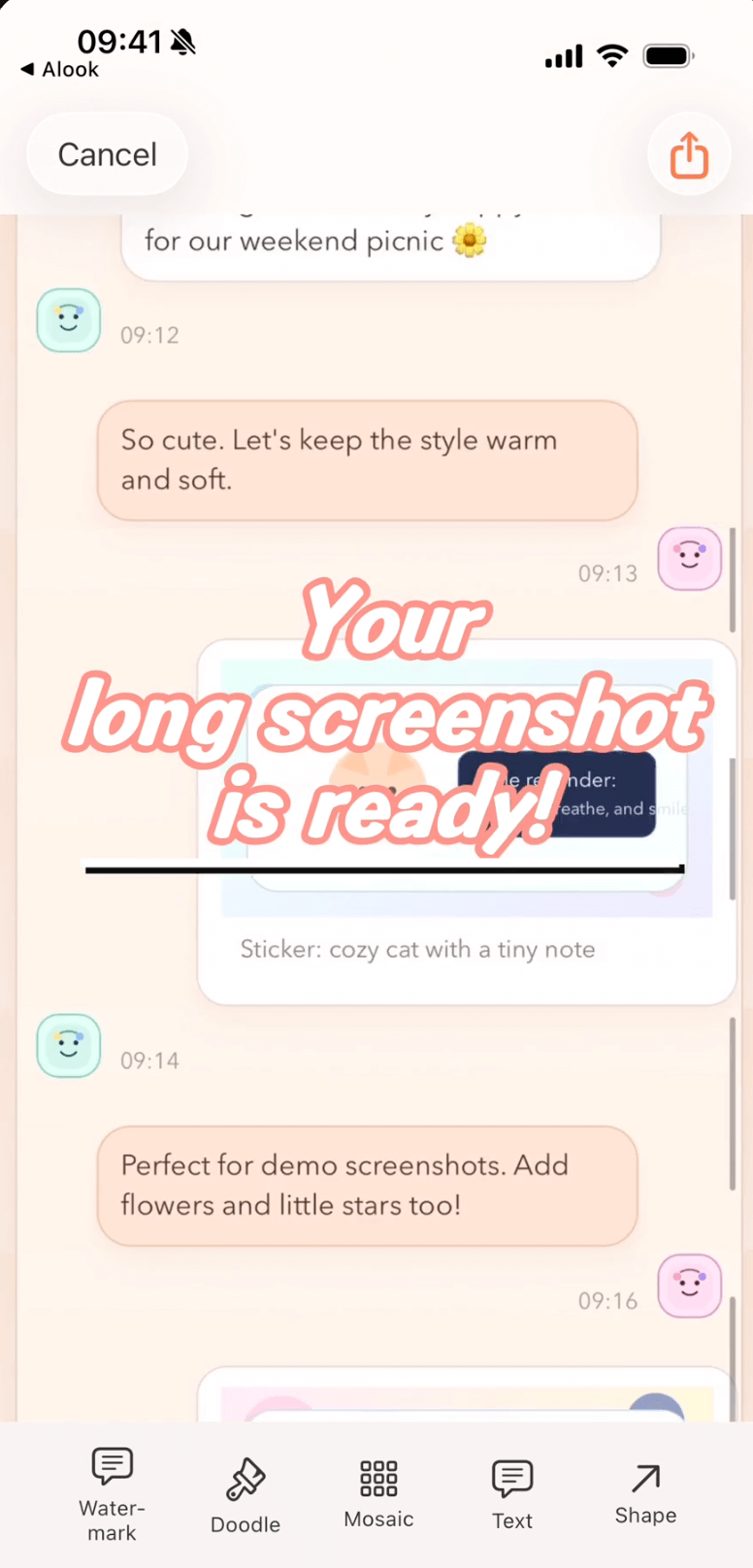
Where a Shortcut stops with "here's the tall image", Scrollie opens the same image into an editor with drafts, seam Fine-tune, Cleanup brush and mockup.
What a Shortcut actually does well
Let's start by giving the Shortcuts approach real credit — because in the right conditions, it's terrific:
- Free and native. No App Store install, no subscription, nothing to sign in to. It uses only what iOS already gives you.
- Runs on-device. Like any Shortcut, everything happens locally; your screenshots never leave the phone.
- Composable. You can wire it into a Share Sheet action, trigger it from an Automation, or chain it after another Shortcut ("save to Files then stitch").
- Customisable if you know Shortcuts. Adjust the overlap threshold, change the output size, pipe the result to Files or a specific album. If you're comfortable with the Shortcuts editor, that's real control.
- Zero UI surface. Tap the Shortcut, wait a second, the long screenshot is in Photos. There's a certain elegance in not opening an editor at all.
For a lot of people, that's it — the story ends here. Take three screenshots of a chat, run the Shortcut, share the result. If that's your whole workflow and it works, keep it.
Where a Shortcut hits its ceiling
The design of a Shortcut is one automation pass, then finished. That model is what makes it fast and self-contained; it's also what makes it stop short in these situations:
- Can't fix seams after the fact. If the auto-align nudges two frames a few pixels off, the seam is now baked into the output. There's no interactive place to tap and drag with a magnifier — you re-run the whole automation and hope the next try is cleaner, or you live with it.
- No cleanup brush. A tiled "confidential" watermark on an internal doc, a passer-by in the corner of a chat screenshot, a UI badge you'd rather not share — the Shortcut has no notion of "paint over this and fill the background".
- No drafts, no resume. Every Shortcut run is stateless. If you pause mid-workflow, re-running the Shortcut starts from the source screenshots again. There's nothing like an editor draft to reopen tomorrow.
- No collage templates. Stitching two chats side by side, or arranging six trip photos into a 2×3 grid with per-cell edits, isn't in the Shortcut's model. Its job is "concatenate images vertically", not "arrange with templates".
- No device mockup. Wrapping the finished long image in a real iPhone/iPad frame — including current iPhone 17 series colors — takes a rendering pipeline the Shortcut doesn't ship with.
- No screen-recording pipeline. The Shortcut works on a set of still screenshots. If your source is a scrolling screen recording, you need something that extracts and aligns frames, handles overscroll-back, and cleanly ends the long image where you stopped scrolling.
Native Shortcut vs Picsew vs Scrollie — a quick 3-way map
| Capability | Native Shortcut | Picsew (per App Store description) | Scrollie |
|---|---|---|---|
| Auto-stitch multiple screenshots | ✓ Community scripts | ✓ | ✓ With Smart Cleanup of scrollbars |
| Interactive seam Fine-tune with magnifier | — One-shot pass | ✓ "fine-tune the join points" | ✓ Tap seam, drag with magnifier |
| Screen recording → long image | — Stills only | ✓ "Scrollshot recording" | ✓ Auto-stop, overscroll-back handled |
| Cleanup brush (erase object/watermark) | — | — Not listed | ✓ Paint, auto-fill background |
| Drafts inbox, portrait/landscape separate | — Stateless | — Not listed | ✓ Resume any edit |
| Template collage (2–12 photos) | — | — "photo stitching" only | ✓ Templates, per-cell edit |
| Device mockup (incl. iPhone 17 colors) | — | ✓ "device frames" (generic) | ✓ Multiple iPhone 17 models & colors |
| Export JPEG / PNG / HEIC / PDF / slices | Depends on your script | ✓ PDF, slices, high-res | ✓ All five, plus per-slice mockup |
| Cost | Free, native | Paid app | Free core, Pro subscription or lifetime |
"Not listed" means the capability isn't advertised in Picsew's App Store description as of 2026-07-21; it does not claim what the app can or cannot ultimately do. Compare with your own use case.
Two workflows, side by side
Shortcut workflow (works when the source is clean)
- Take three overlapping screenshots of a chat.
- Open your "Stitch Screenshots" Shortcut, pick the three images.
- Wait a second — the long image lands in Photos. Done.
If step 3 gave you a clean image and you never need to touch it, stop here.
Dedicated-app workflow (adds interactive editing)
- Share the same three screenshots into Scrollie — or open the latest screenshot via Scrollie's URL Scheme.
- Scrollie stitches, Smart Cleanup removes scrollbars. Tap any seam that looks off, drag with the Fine-tune magnifier until pixels line up.
- Paint over the sender name with the Cleanup brush; the background fills in.
- Wrap the result in an iPhone frame, export as PDF, or slice it evenly for platforms that reject very tall images.
- Close the app mid-edit. Come back tomorrow — your draft is right there, portrait and landscape kept separate.
When the Shortcut is still the right answer: if you're already a Shortcuts power user with a working stitcher script, your source screenshots are consistent, you never need to fix a seam, and you never want to edit the result — keep it. It's free, native, on-device, and it belongs to a workflow you already control. Don't add an app just because you can.
Reach for Scrollie the moment you need to edit the result: a seam that's a few pixels off, a watermark you want gone, an object you want wiped, a device frame you want to wrap it in, or an edit you want to resume tomorrow. Those are what an interactive editor is built for and what a one-shot automation cannot express.
Can they cooperate?
Yes — and this is the pattern most people end up with. Keep your Shortcut for the fast path: it runs from a Share Sheet or from an Automation trigger, delivers a first-cut long image, and stays out of your way. When that image needs polish, share it into Scrollie. Scrollie also exposes its own URL Scheme so a Shortcut can jump straight to "open the latest screenshot" or "open the latest screen recording" in the editor — you don't lose the Shortcuts-first flow, you just gain an editor to land in when you need one.
Frequently asked questions
Can Apple Shortcuts really stitch screenshots into one long image?
Yes. Community-built shortcuts such as the various “Stitch Screenshots” scripts take a batch of images from Photos, align them by overlap, and output a single tall image to the photo library. They are free, run entirely on-device, and don’t require installing a separate app. What they can’t do is give you an editor: the result comes out in one pass, and if a seam is off, there’s no interactive way to nudge it.
When is a Shortcut good enough on its own?
When your source screenshots have clean overlap, a uniform background, no sticky headers, and you never need to touch the output — annotate, mosaic, wipe out an object, add a device frame. If “stitch and save” is the whole job, a working Shortcut is a fine tool and there’s no reason to add another app.
What does a dedicated app like Scrollie add that a Shortcut cannot?
Interactive editing after the stitch. Fine-tune a seam by dragging with a magnifier. Erase a watermark or a passer-by with the Cleanup brush. Resume tomorrow from an auto-saved draft (portrait and landscape stored separately). Arrange 2–12 photos into a template collage. Wrap the finished image in a real iPhone frame. Export as JPEG, PNG, HEIC, PDF or evenly-sized slices.
Can I use both — Shortcut for speed, Scrollie for polish?
Yes. A common pattern is to run your existing Shortcut for the initial stitch, then share the tall image into Scrollie when you need to fix a seam, wipe something out, add a watermark or a device frame, or export as PDF. Scrollie also has its own URL Scheme so a Shortcut can open the latest screenshot or recording directly in the editor.
Is Scrollie free?
Yes, core features are free. Pro features come with a free trial, then a monthly or annual subscription or a one-time lifetime purchase — prices are shown in the app before purchase.
Related pages
Keep the Shortcut. Add an editor when you need one.
Core features free. Pro comes with a free trial, then a subscription or a one-time lifetime purchase.
Download Free on the App StoreiPhone & iPad · iOS 16 or later · 100% on-device