 Scrollie
How to screenshot a whole webpage on iPhone — the free path and the fallback
Last updated: 22 July 2026
iPhone has had a real full-page screenshot tool since iOS 13, and most people don't know it exists. It's excellent — within a narrow set of conditions. Outside those conditions (Chrome, an in-app browser, a WeChat article you can't open in Safari), you need a different approach. This guide covers both, starting with what Apple already gave you for free.
The short answer: If the page is in Safari, take a normal screenshot, tap the thumbnail, switch the top tab from Screen to Full Page, and save as a PDF — it's free and built into iOS. If the page is in Chrome, an in-app browser, or a chat article, use Control Center Screen Recording, scroll from top to bottom, then let Scrollie process the recording into one tall image you can export as JPEG, PNG, HEIC or PDF.
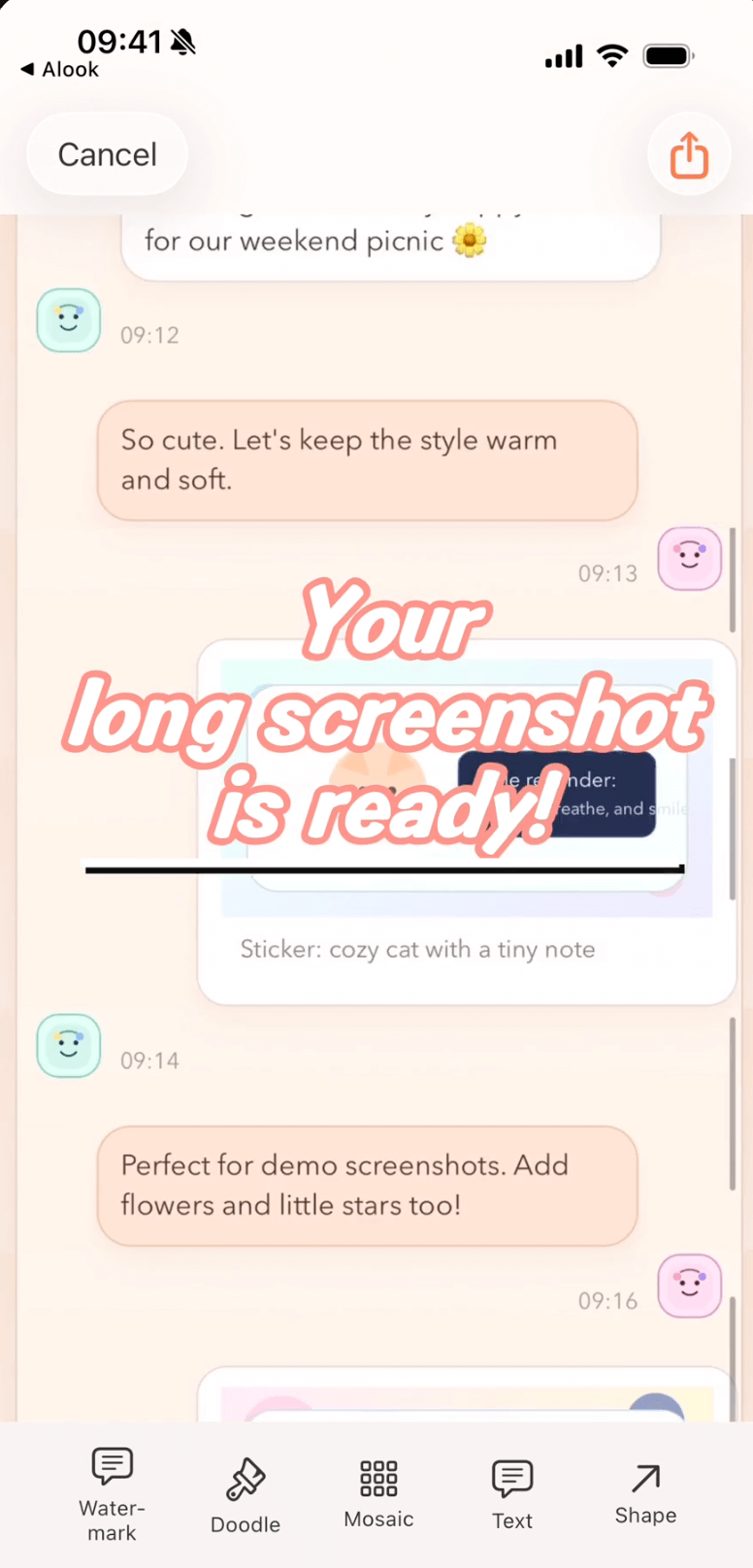
A screen recording of a scrolling webpage becomes one editable long image in Scrollie, exported as JPEG, PNG, HEIC, PDF or evenly-sized slices.
Method 1 · Safari Full Page (iOS 13+, built in, free)
This is Apple's own full-page screenshot feature. It only appears in Safari, and it only saves as a PDF — but for reading a long article later, that PDF is exactly the right format.
- Open the webpage in Safari. This will not work in Chrome, Firefox, DuckDuckGo, or an in-app browser (the one inside Twitter, Reddit, LinkedIn, WeChat, Feishu, and so on). It must be Safari.
- Take a screenshot the normal way: press the side button + volume-up at the same time on Face ID iPhones, or home button + side button on Touch ID iPhones.
- A small preview thumbnail appears in the bottom-left corner. Tap it before it slides away (roughly 5 seconds).
- At the top of the preview screen you'll see two tabs: Screen (just the visible screen) and Full Page (the whole document). Tap Full Page.
- Use the sidebar on the right to scroll through the entire page as a preview. Use the crop button if you want to trim the top or bottom.
- Tap Done, choose Save PDF to Files, pick a location (Files → iCloud Drive, or On My iPhone), and confirm.
Honest limits, without spin:
- Safari only. Full Page is a Safari feature, not an iOS-wide feature. In Chrome the option won't appear. In an in-app browser (Twitter, Reddit, LinkedIn, WeChat article, Feishu link) it also won't appear.
- PDF only. If you wanted a JPEG or PNG to send in a chat or drop into a design tool, you'll need to convert the PDF afterwards, or use a different method from the start.
- Not editable as an image. You can annotate the PDF with Markup, but you can't run Cleanup brush, add a tiled watermark, wrap it in a device frame, or slice it into evenly-sized pieces the way you can with an image.
Method 2 · Screen Recording + Scrollie (works everywhere)
When you're outside Safari — Chrome, DuckDuckGo, the in-app browser in Twitter or Reddit or LinkedIn, a WeChat article, a Feishu doc link, a mobile Notion page — Full Page doesn't exist. The reliable path is Screen Recording, because that works in every app on iOS.
Step A · Turn on Screen Recording in Control Center
- If you haven't done this before, go to Settings → Control Center and tap the green + next to Screen Recording to add it.
- Swipe down from the top-right corner of the iPhone to open Control Center.
- The record button is a circle inside a circle. Tap it and wait for the 3-second countdown.
- Recording begins; the status bar shows a red pill.
Step B · Scroll the page at a steady pace
- Open the app or browser with the page you want to capture. If a keyboard is up, dismiss it — you don't want it in the frame.
- Scroll from the top of the article to the bottom. Don't rush — a steady, unhurried scroll gives the stitcher clean overlaps to work with.
- If you overshoot and want to scroll back a few lines, that's fine — Scrollie handles overscroll-back.
- When you reach the bottom, tap the red pill in the status bar and choose Stop. The recording lands in Photos.
Step C · Let Scrollie process it into a long image
- Open Scrollie. The latest screen recording appears at the top — one tap to import.
- Scrollie extracts frames, detects the moving region, and produces a single tall image. On iOS 18 and later, it can also auto-stop when scrolling ends.
- If a seam looks off, tap it and use the Fine-tune magnifier to drag it into place.
- Annotate, mosaic, add a watermark, or wrap in a device frame if you want.
- Export as JPEG, PNG, HEIC, PDF, or evenly-sized slices.
Quick comparison
| Method | Works in | Output | Editable as image? |
|---|---|---|---|
| Safari Full Page (built-in) | Safari only, webpages only | No — it's a PDF | |
| Screen Recording + Scrollie | Any app, any browser, any article | JPEG / PNG / HEIC / PDF / slices | Yes — annotate, mosaic, cleanup, mockup |
When Safari Full Page is enough: if the page is in Safari and all you want is to save a Wikipedia article, a recipe, or a long blog post for reading later, Method 1 is free, built into iOS, and just works. The PDF is searchable, it opens on every device, and you don't need a third-party app. Please use it — no need to install Scrollie for that.
Reach for Scrollie when the page isn't in Safari, when you need a real image file (JPEG, PNG, HEIC) instead of a PDF, when you want to hide something on the page with mosaic or Cleanup brush before sharing, or when you need to slice the tall image into pieces for a platform that rejects extremely tall images.
Frequently asked questions
Does iPhone have a built-in full-page screenshot tool?
Yes, but only in Safari and only as a PDF. Since iOS 13, Safari lets you take a normal screenshot, tap the preview thumbnail, then switch the top tab from Screen to Full Page and save the whole page as a PDF file. iOS does not have a built-in tool that saves the whole webpage as one long JPEG or PNG, and the Full Page mode does not exist in Chrome, Firefox, or in-app browsers.
How do I capture a full webpage in Chrome or an in-app browser?
The built-in path is Screen Recording. Turn on Screen Recording from Control Center, scroll from the top of the article to the bottom at a steady pace, then stop. The recording lands in Photos. Open Scrollie, pick the latest recording, and it processes the video into a single tall image that you can then annotate, mosaic, or export as JPEG, PNG, HEIC, or PDF.
Why does Safari save Full Page as a PDF instead of a PNG?
Apple decided PDF was the right container for a page that scrolls beyond one screen — it preserves text, layout, and can be searched later. The downside is that a PDF is awkward to send in a chat where the other side expects an image, awkward to edit in most photo apps, and awkward to crop. If you want a real JPEG or PNG of a full page, either convert the PDF afterwards or use the Screen Recording plus Scrollie route from the start.
How does Scrollie handle the screen recording of a webpage?
Scrollie extracts frames from the recording, detects the moving region, and stitches them into one tall image. It also handles the case where you scrolled a little too far and scrolled back — the final image ends on the frame where you actually stopped, not the farthest point you overshot. Fine-tune with the magnifier if any seam looks off, and export in whichever format your destination expects.
Is Scrollie free?
Yes, core features are free. Pro features come with a free trial, then a monthly or annual subscription or a one-time lifetime purchase — prices are shown in the app before purchase.
Related pages
Safari for PDFs, Scrollie for everywhere else.
Core features free. Pro comes with a free trial, then a subscription or a one-time lifetime purchase.
Download Free on the App StoreiPhone & iPad · iOS 16 or later · 100% on-device