 Scrollie
Add a device frame to a screenshot on iPhone — three paths and their limits
Last updated: 22 July 2026
A raw screenshot looks like a floating rectangle. Drop it into a real iPhone bezel and the same image suddenly reads like a product shot — the eye knows it's a phone screen, the whitespace around the phone gives the content room to breathe, and colors pop against the device's metal or ceramic frame. The problem: iOS does not have a built-in way to do this. Apple owns the source-of-truth frames, but they ship them as Sketch, Figma and Photoshop files for designers on a Mac — not as a Photos-app button. This guide walks the three real paths for wrapping a screenshot in a device frame on iPhone.
The short answer: If you already live in Figma or Sketch on a Mac, download Apple's Design Resources — they are the definitive frames. For a one-off mockup in a browser, use a web mockup generator like mockuphone.com (accepting that your screenshot uploads to a server). For an on-device, one-tap mockup that keeps your screenshot on your phone — including iPhone 17 models and official Apple colors — use Scrollie's Device Mockup.
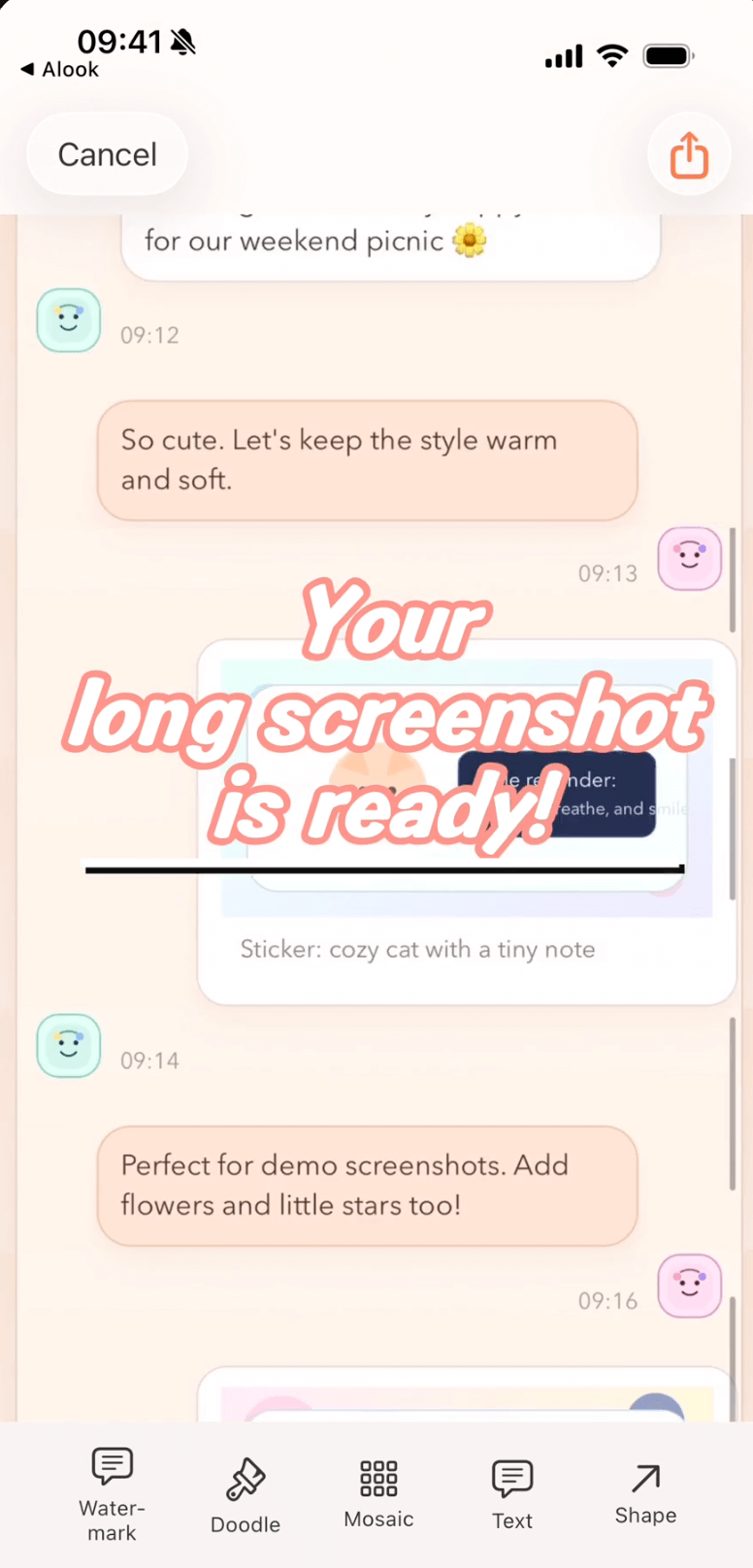
Scrollie's Device Mockup applied to a long screenshot, with the iPhone 17 frame in an official Apple color.
The honest baseline: iOS has no built-in mockup feature
It's worth stating plainly because it's easy to assume it exists somewhere. In the Photos app you can crop, adjust, mark up, and now (on iOS 18 with the right hardware) run Clean Up. What you cannot do is tap a button and wrap the screenshot in an iPhone bezel. There is no Photos filter for it, no Markup tool, no Shortcuts action from Apple that adds a frame. Every route to a mockup involves stepping outside iOS's default toolset — either up to a Mac with a design tool, out to a web browser, or over to a dedicated iOS app.
Path 1 · Apple's official Design Resources (Mac + design tool)
Apple publishes a page called Design Resources that includes Sketch, Figma and Photoshop libraries with the exact bezels, colors, and materials of each recent iPhone and iPad. These are the source-of-truth frames — everyone else's mockup ultimately traces back to something Apple published. If you're a designer with Sketch or Figma open anyway, this is the cleanest path.
- Go to Apple's Design Resources page on a Mac. Search for "iPhone" (or "iPad") and download the file for the tool you use — Sketch, Figma or Photoshop.
- Open the file. You'll see artboards for each model and color. Pick the one you want.
- Drag your screenshot into the placeholder area inside the frame. Most Apple templates use a mask or clipping layer so the screenshot sizes itself automatically.
- Export the artboard as PNG or JPEG at whatever resolution you need — 2x for retina, 3x for App Store listings, etc.
Honest limits: this is a designer's workflow. You need a Mac, a design tool, and roughly ten minutes the first time. For a marketing hero image or a portfolio piece it's worth it. For "I want a quick mockup on my phone right now," it's overkill.
Path 2 · A web mockup generator (browser, no install)
A handful of free web tools — mockuphone.com is the most familiar — accept a screenshot upload, wrap it in a device frame, and give you a PNG back. Works on any device with a browser, including iPhone.
- Open a mockup generator in Safari (mockuphone.com or a comparable service).
- Pick the device you want the mockup for — iPhone, iPad, Android, or another form factor.
- Tap Upload and choose your screenshot from Photos.
- Wait for the server to render the mockup — usually a few seconds — then tap Download to save it back to Photos.
Honest limits: your screenshot has to be uploaded to a third-party server for processing. For a marketing shot that's already destined for a public landing page, that's fine. For a private chat, a bank app screen, an internal work app, or anything you'd rather keep off other people's servers, this is the wrong path. Web tools also tend to lag behind on the very latest devices, and their frames aren't always the exact bezels Apple ships.
Path 3 · A dedicated iOS app (on-device, one-tap, current devices)
The middle ground for most people: install a small iOS app that includes a mockup tool. Scrollie ships a Device Mockup feature that wraps a screenshot in a real iPhone or iPad bezel with one tap, on-device, with iPhone 17 models and official Apple colors already in the library.
Wrap an ordinary screenshot
- Open Scrollie and pick the screenshot from your library, or share it in from Photos.
- Tap the Device Mockup tool. The frame library appears — recent iPhone and iPad models, each in their real Apple colors.
- Pick a model and color. The screenshot is placed inside the bezel automatically. If your screenshot has rounded corners or a different aspect ratio, Scrollie fits it to the display area.
- Add a background, a caption, or arrange multiple mockups in a collage if you're making a marketing set. Export as JPEG, PNG, HEIC, or PDF.
Wrap a long screenshot (per-slice mockup)
Long screenshots are usually too tall to fit in a single device frame. Scrollie's mockup understands this: if you export the long screenshot as sliced pieces, each slice can be wrapped in its own frame, so you get a set of realistic-looking device shots instead of one impossibly tall phone.
- Import your long screenshot (or stitch one from multiple screenshots) in Scrollie's editor.
- Open the export panel and choose Slices — the tall image is split into equally-tall segments.
- Turn on the per-slice Device Mockup option. Each slice is now framed as its own screen.
- Export the set. You end up with three, four or five mockup images that tell the whole story instead of one impossible thousand-pixel phone.
Quick comparison
| Path | Where you work | Privacy | Effort |
|---|---|---|---|
| iOS built-in | — | — | Not possible |
| Apple Design Resources | Mac + Sketch/Figma/Photoshop | Local, on your Mac | 10 min first time, then quick |
| Web mockup generator | Any browser | Screenshot uploads to a server | Fast |
| Scrollie Device Mockup | iPhone / iPad | On-device, nothing uploaded | One tap |
Where Scrollie won't be the right pick: if you need a very specific device model that isn't in Scrollie's library yet — an older iPad Pro, a very specific Android model, a form factor for a marketing campaign — Apple's Design Resources on a Mac (or a specialized mockup tool with a large library) will still cover more ground. Scrollie focuses on current iPhones and iPads in their real Apple colors. If a model you need is missing, sending feedback via support helps us prioritize additions.
The rest of the time — one-off mockups for social posts, App Store screenshots, a portfolio piece, or a long screenshot you want to present as a set — one tap on-device beats uploading it to a server or firing up a design tool.
Frequently asked questions
Does iOS have a built-in way to add a device frame to a screenshot?
No. iOS has no built-in mockup or device-frame feature. The Photos app can crop, mark up and edit a screenshot, but there is no option anywhere in the system to wrap a screenshot in an iPhone or iPad bezel. Every path to a mockup on iPhone involves either downloading Apple's Design Resources on a Mac, using a web mockup generator in a browser, or installing a dedicated iOS app.
Where do I get the official iPhone device frames from Apple?
From Apple's Design Resources page. Apple ships Sketch, Figma and Photoshop files with the exact bezels and colors for each recent iPhone and iPad. These are the definitive source, but they are designed for use on a Mac in a design tool — not on the phone itself. If you already work in Figma or Sketch, drop your screenshot into a frame and export. If you don't, this path is overkill for a single mockup.
Are the free web mockup generators safe to use?
They work, but you should think about where your screenshot ends up. Web tools like mockuphone.com upload your image to a server, generate the mockup there, and let you download the result. For a marketing screenshot that's fine. For a personal chat, a bank app, a private document or a work app, uploading a screenshot to a third-party server may not be what you want. A dedicated on-device app avoids that trade-off.
How does Scrollie's device mockup work?
Open a screenshot in Scrollie, tap the Device Mockup tool, pick a frame, and the screenshot is wrapped in that bezel. The library includes iPhone 17 models in the official Apple colors. It works on ordinary single-screen screenshots and on long screenshots — for long ones, when you export as sliced pieces, each slice can be wrapped in its own mockup. Everything happens on-device.
Is Scrollie free?
Yes, core features are free. Pro features come with a free trial, then a monthly or annual subscription or a one-time lifetime purchase — prices are shown in the app before purchase.
Related pages
Wrap your screenshot in a real iPhone frame — one tap, on device.
Core features free. Pro comes with a free trial, then a subscription or a one-time lifetime purchase.
Download Free on the App StoreiPhone & iPad · iOS 16 or later · 100% on-device