Quick access

Fastest path

Recording to long screenshot

Set up broadcast (iOS version split)

iOS 18+

  1. Swipe down to open Control Center.
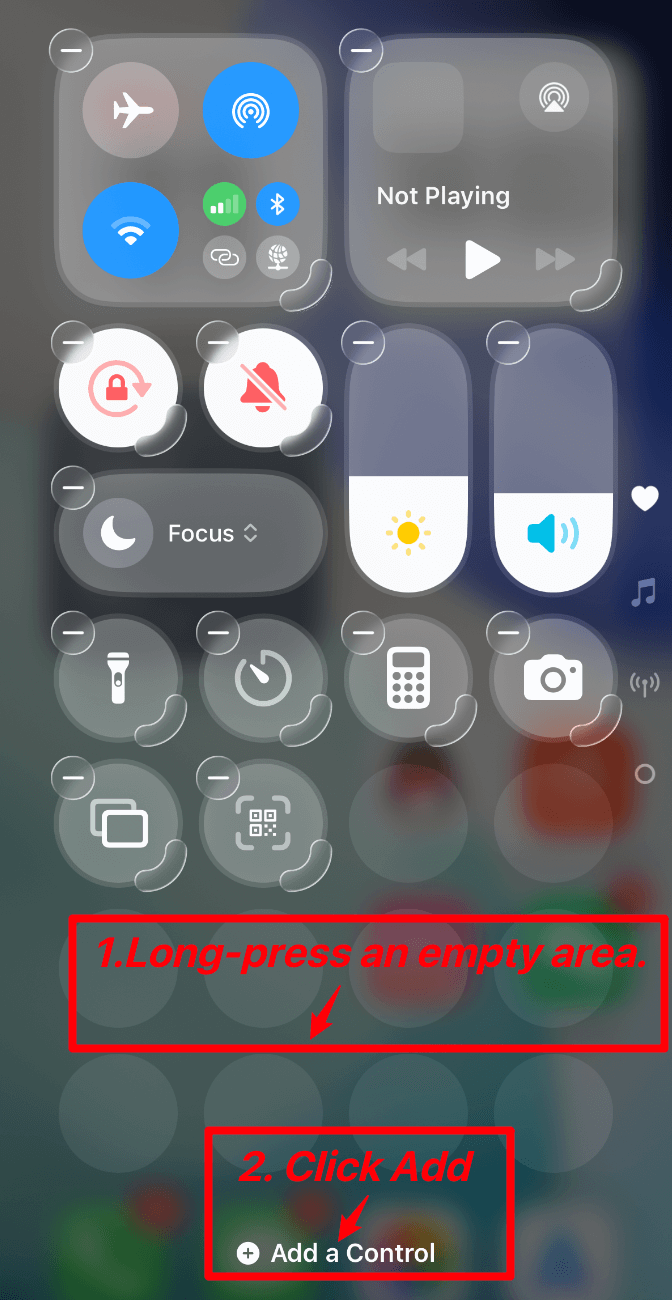
  2. Long-press an empty area to enter edit mode.
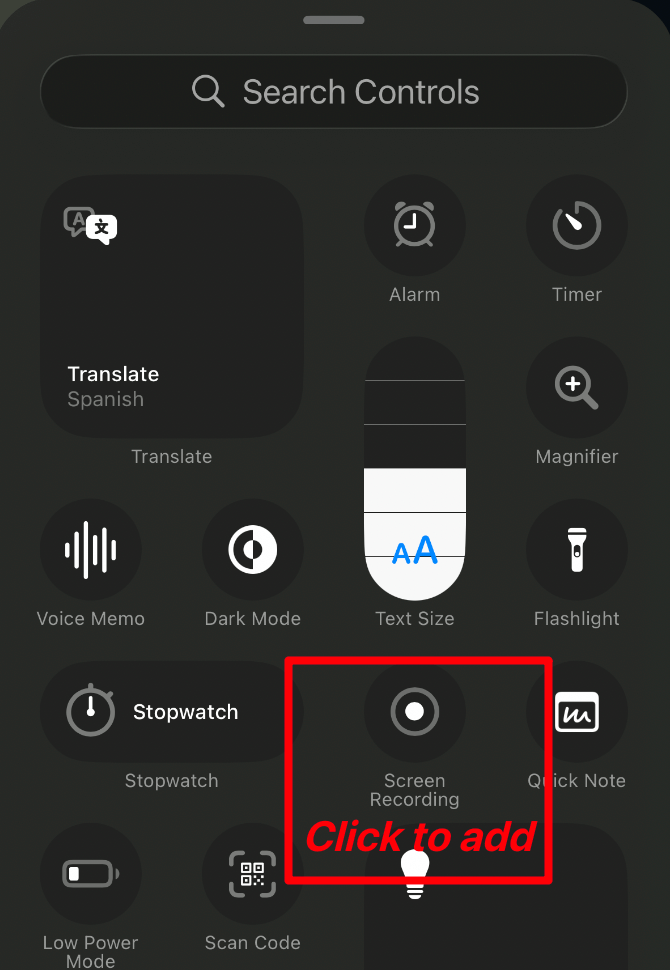
  3. Tap Add a Control, then add Screen Recording.
Long-press an empty area and tap Add a Control
Add Screen Recording in the control list

iOS 16-17

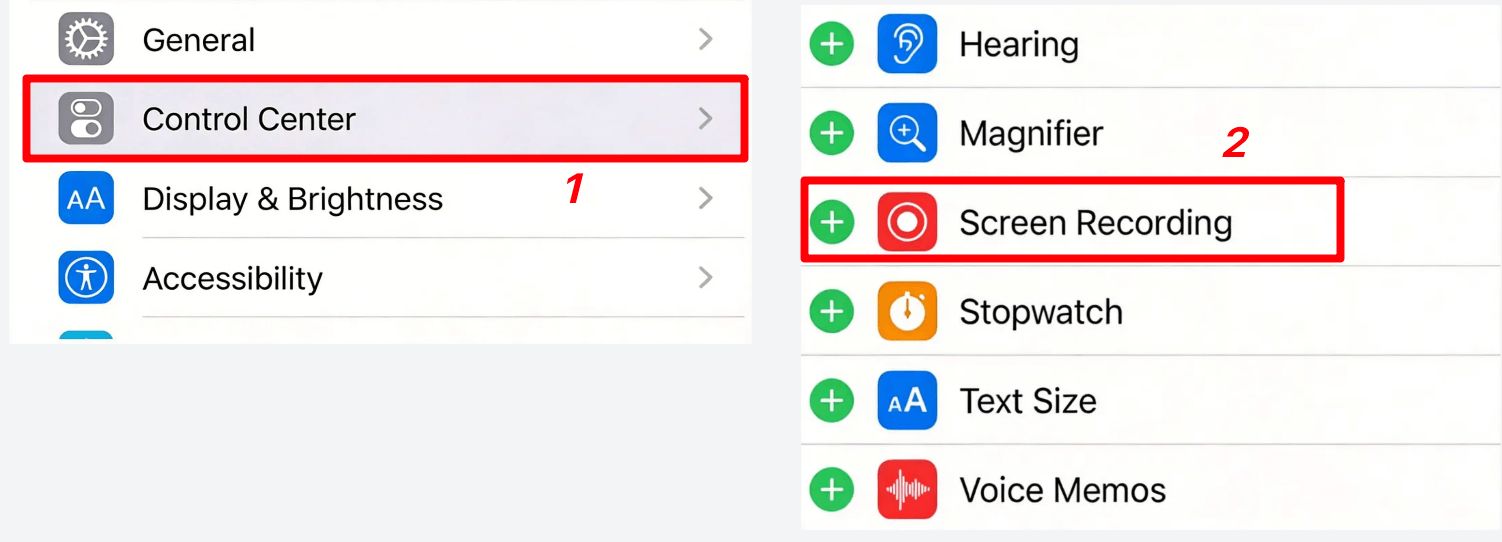
  1. Open Settings.
  2. Go to Control Center.
  3. Add Screen Recording under More Controls.
Open Settings and add Screen Recording in Control Center

Process the long screenshot

  1. Open Control Center and long-press the screen recording button.
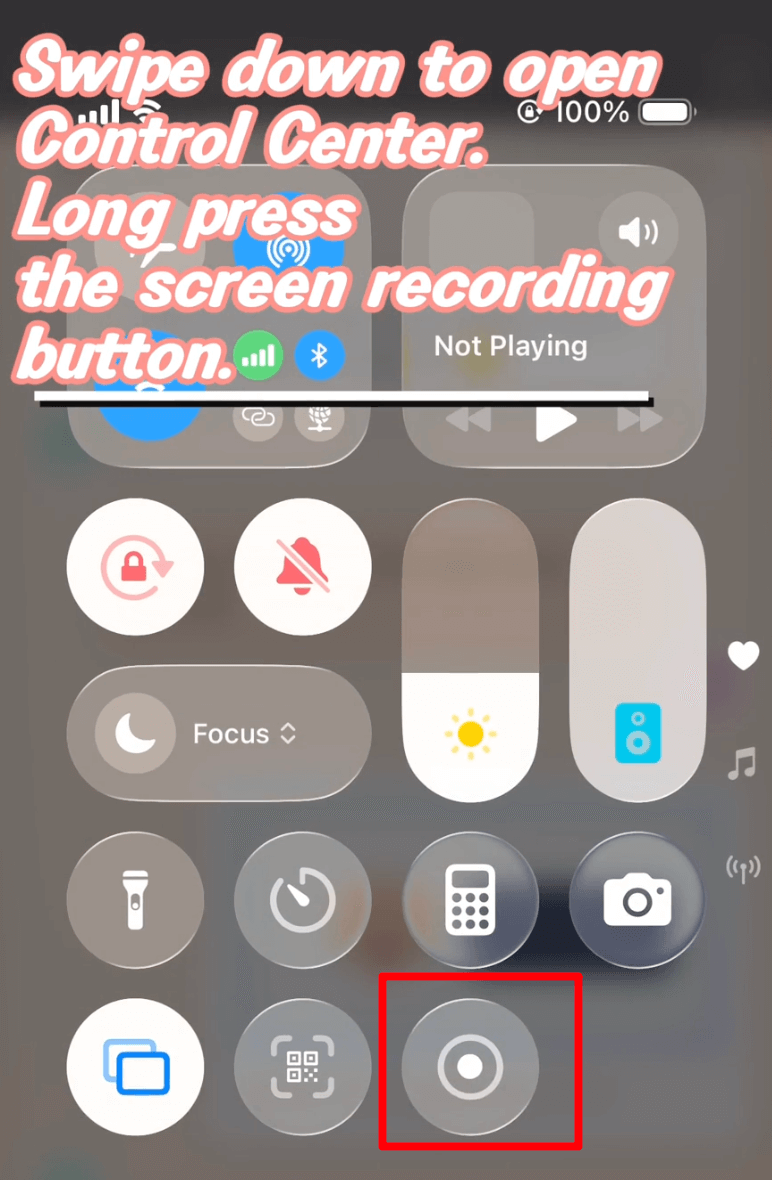
Open Control Center and long-press Screen Recording
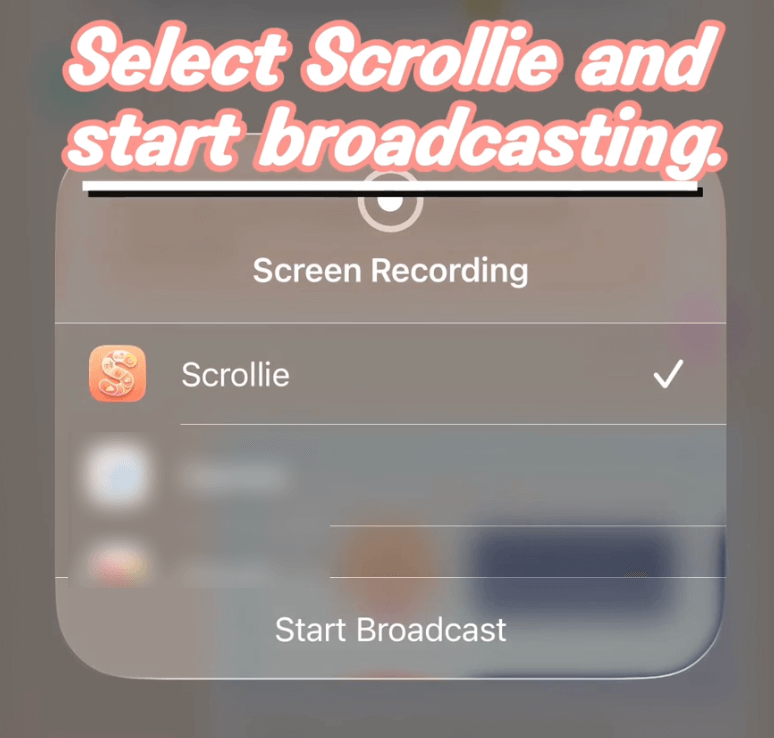
  1. Select Scrollie and tap Start Broadcast.
Select Scrollie and start broadcasting
  1. Wait for the recording icon in the Dynamic Island, then start scrolling.
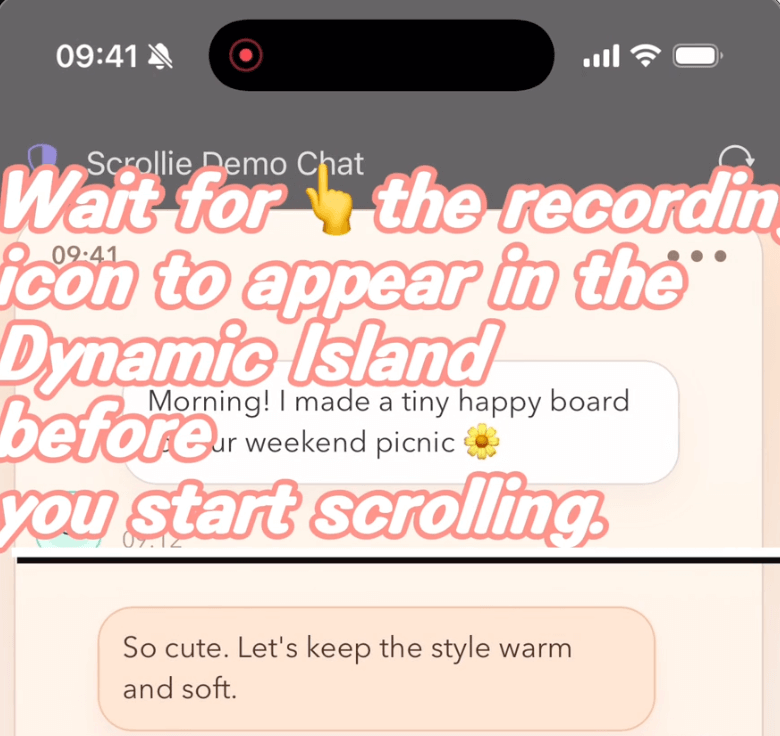
Wait for the recording icon in the Dynamic Island
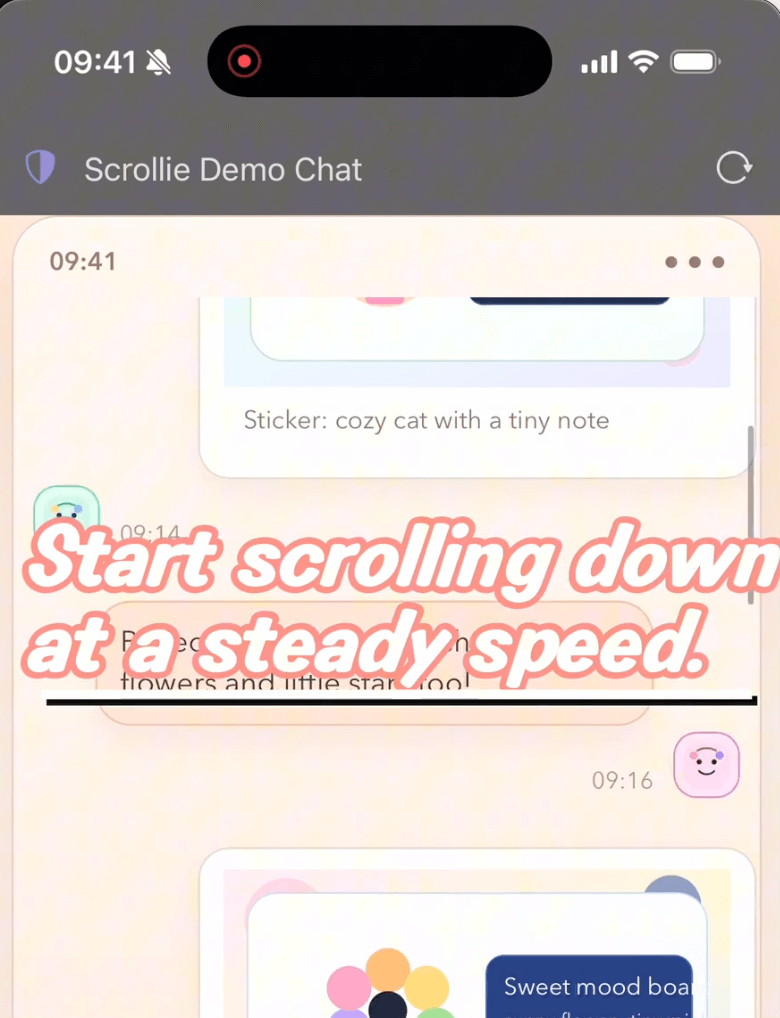
  1. Scroll down at a steady speed.
Scroll down at a steady speed
  1. Tap the Dynamic Island at the top to stop recording.
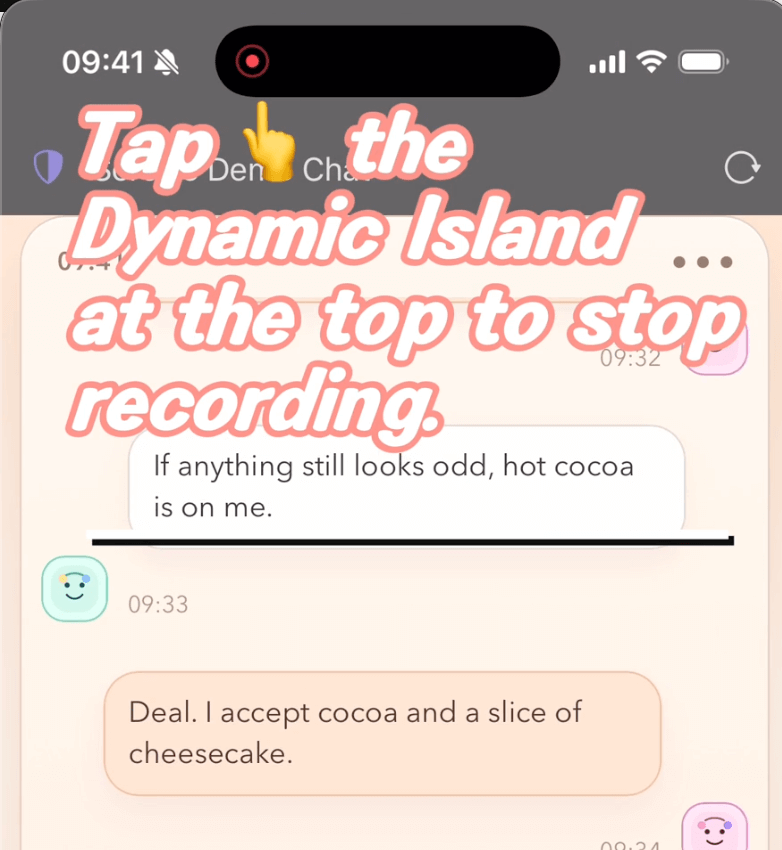
Tap the Dynamic Island to stop recording
  1. Tap the floating notification to jump to Scrollie.
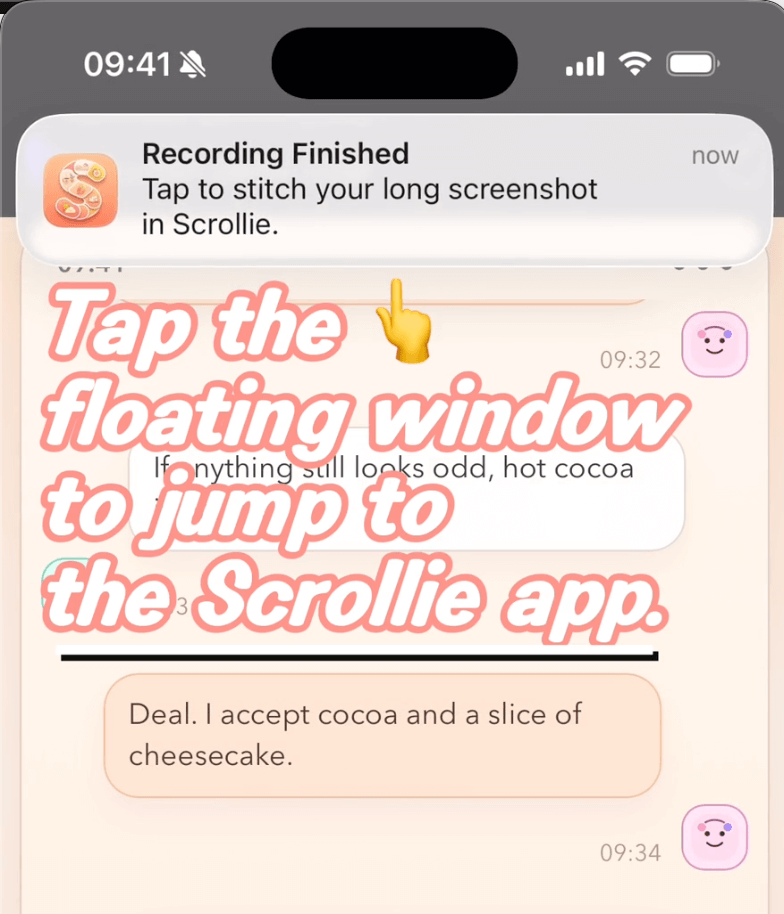
Tap the floating notification to open Scrollie
  1. Review and export the generated long screenshot in Scrollie.
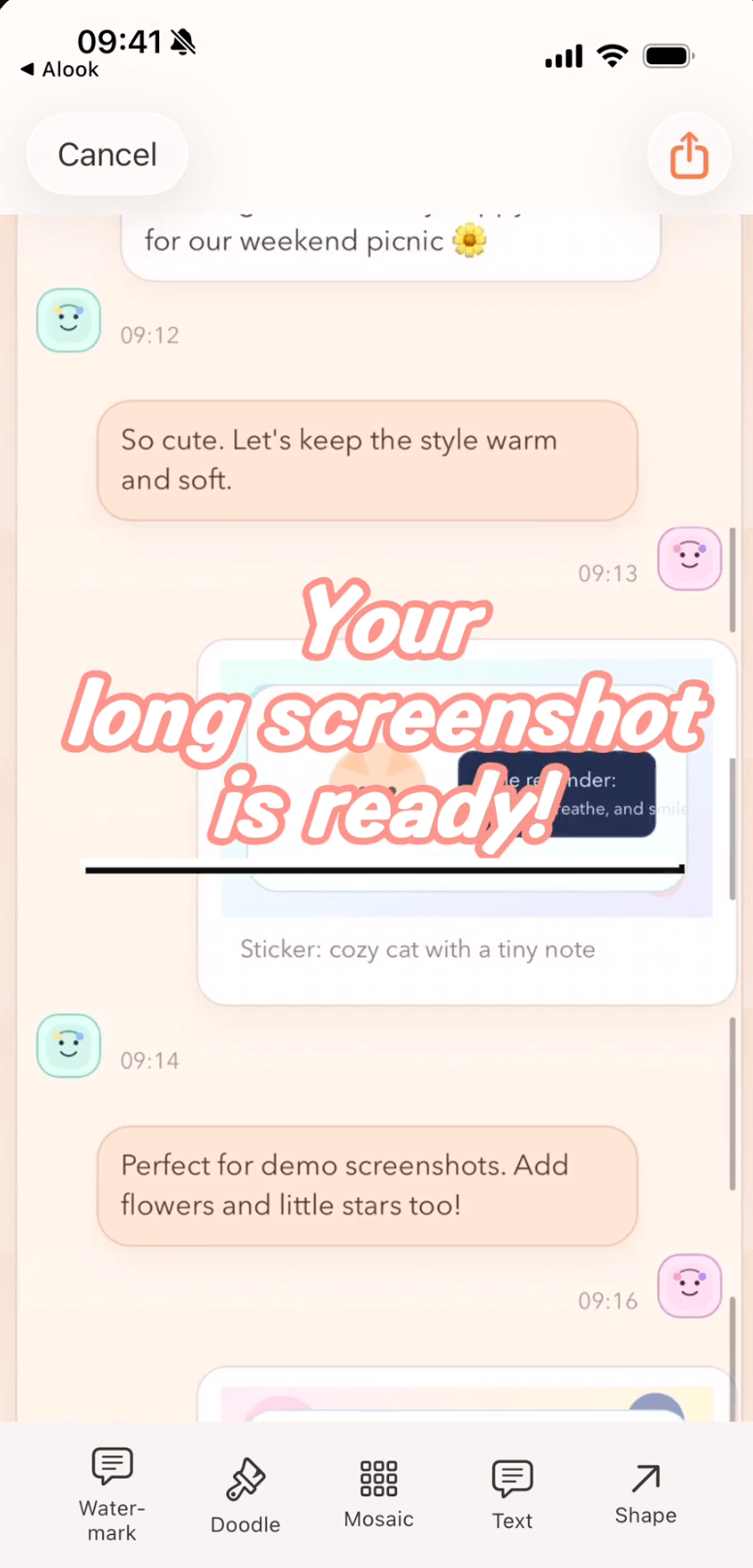
Long screenshot generated successfully